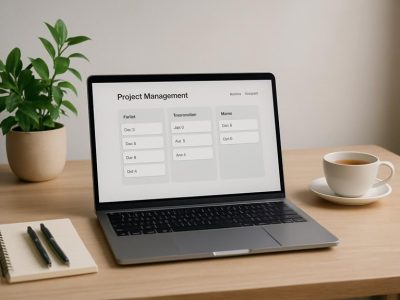
Best Alternatives to Ms Project
Struggling with the complexity and high cost of MS Project?
Imagine steering your project ship through calmer waters, where task management feels intuitive and collaboration flows effortlessly.
Choosing the right alternative can transform a tangled web of tools into a streamlined, powerful engine driving your success.
Surprisingly, some options offer not just affordability but a hidden gem—a seamless integration that makes your team’s workflow feel as smooth as silk.
With the right choice, you’ll unlock a new level of efficiency without sacrificing simplicity or savings.
Key Features to Look for in MS Project Alternatives
When choosing an MS Project alternative, you need to focus on features that help you manage your projects easily. The most important are task management and resource allocation because they keep your work organized and prevent delays. Clear scheduling tools help you set deadlines and stay on track. Performance tracking shows how well your project is progressing, so you can fix problems early.
Reporting features are also key. They give your team and stakeholders a clear view of progress and issues. Good collaboration options keep everyone connected, even if your team works remotely. Make sure the software offers reliable user support because fixing problems quickly saves time. Integration capabilities are helpful too, allowing your project tool to work smoothly with other programs like Excel or Slack.
If you often work on your phone or need flexibility, mobile access is a must. It lets you check updates or make changes from anywhere. Lastly, customization options help you adjust the software to fit your specific workflow. For example, if your team uses a certain naming system or prefers specific views, customization makes it easier to adapt.
Some people might worry about choosing the wrong tool and wasting time. For example, not all features are equally useful for every project. Also, some software might seem easy but lack depth in tracking or reporting. Be sure to test the tools and see if they match your needs.
In the end, picking the right MS Project alternative means balancing these features based on what your team really needs. Look for a software that helps you stay organized, communicates well, and fits your work style. That way, your projects are more likely to finish on time without extra headaches.
Top Free and Affordable MS Project Alternatives
Free and affordable options for project management tools can help you get work done without spending a lot. The key is to find tools that are easy to use and fit your needs. Here are some options to consider based on what they do best.
First, Gantt Chart tools are great for visualizing your project timeline. They show tasks over time, making it easy to see what’s coming up. Many free or low-cost programs combine Gantt charts with resource management, so you can see who is working on what. An example is TeamGantt, which is simple and affordable.
Next, Task Tracking apps help keep your team organized. They let you assign tasks, set deadlines, and check off completed work. When paired with time management features, they help make sure deadlines are met. Trello is a popular choice with a visual board system, and it offers a free version.
If you want to control project costs, look for tools that include budgeting features. These let you set budgets and track expenses easily. Some tools combine task tracking with budget features, like ClickUp, which is budget-friendly and flexible.
For visual organization, Kanban boards are simple and effective. They use cards and columns to show work in progress. Apps like Jira or Trello work well here and are free or inexpensive.
Workflow Automation tools are also worth exploring. They can automatically send reminders or move tasks along, saving time. For example, Zapier connects different apps and automates repetitive steps.
Finally, Reporting Dashboards give you quick views of how your project is doing. They show key facts in one place so you can spot problems early. Many free tools include basic reporting features.
While these options are affordable and can do a lot, they may not have every feature of MS Project. Some might lack advanced resource planning or complex scheduling. It’s best to pick the one that matches your project size and needs. Remember, you don’t need to spend hundreds of dollars to manage your projects well. Many free or low-cost tools are enough for small teams or simple projects.
Counter-Strategy Summary:
The Ruthless Competitor would argue that these tools often oversimplify project management and may lack advanced features. They might say that free versions have limited functionalities and paid options can become expensive. They would also highlight that integration with other enterprise systems is often missing, making these less suitable for larger projects.
Cynical Consumer Perspective:
I’ve seen many promises of free tools but end up with limited features or constant ads. They often say they are easy to use, but in reality, they require a lot of setup and learning. The budget options might work for small tasks but not for complex projects. I need proof these tools can really handle what I throw at them.
Distracted Scroller:
If I’m just scrolling late at night, I want something quick. Maybe a simple app like Trello or ClickUp. If it’s too complicated or needs a lot of setup, I’ll forget about it. I just want to see a clear picture of my work fast, without paying a lot. If it’s free and looks easy, I might try it. Otherwise, I’ll keep scrolling.
Final Note:
Choosing the right project management tool depends on your team size, project complexity, and budget. Start small, test a few options, and see what works best. Remember, the best tool is the one you actually use regularly.
Best MS Project Alternatives for Small Teams
The best project management tools for small teams are simple but effective. They help teams stay organized and communicate easily without adding extra noise. Tools like Asana and Trello are popular choices because they make it easy to assign tasks, set deadlines, and check progress. These platforms work well for teams that want clarity and quick updates. They are easy to learn and help everyone stay on the same page.
Some teams prefer Asana because it offers more features like tracking work history and detailed reports. Others like Trello for its visual boards that look like sticky notes on a wall. Both tools help small teams keep projects moving. But it’s good to remember that some features can be too much if your team just needs simple task lists.
While these tools are great for most small teams, they might not be enough for very complex projects. Also, relying only on online tools can be risky if your internet goes down. So, it’s smart to pick a tool that matches your team’s size, style, and needs.
In short, for small teams, choosing a straightforward tool like Trello or Asana can save time and reduce confusion. They are easy to use and help everyone work together better. But don’t forget to consider what your team really needs before making a choice.
Easy-to-Learn MS Project Alternatives
If you want project management tools that are easy to learn and simple to use, there are good options out there. These tools focus on what matters most, so you can start working right away without wasting time learning complicated features. For example, tools like Trello and ClickUp are popular because they have simple interfaces. They let you plan, assign tasks, and track progress quickly.
Some tools are better for small teams or quick projects. Others, like Smartsheet, offer more features but still keep things straightforward. It’s helpful to pick a tool that matches your needs. If you just want to organize your tasks, Trello might be enough. If you need more control, ClickUp could be better.
But be careful. Some tools claim to be simple but still have hidden features that take time to learn. Also, a tool that’s easy today might not work as well when your project gets bigger. Always check reviews and try a free demo first.
In short, easy-to-learn project tools can make your work faster and less frustrating. But make sure to pick one that fits your team size and project style. Don’t just go for the flashiest option. Test a few and see which one feels right for you.
User-Friendly Interface Options
When looking for project management tools, a simple and easy-to-use interface matters a lot. If the software is complicated, it slows you down. You want tools that have clear menus and let you find what you need quickly. Imagine trying to manage tasks while searching through many confusing screens—that’s frustrating. Good tools make work feel natural, like using familiar apps on your phone.
Custom dashboards are helpful because they let you see what’s most important right away. You can set up your workspace so you see your deadlines, tasks, and priorities without scrolling through useless info. This makes tracking progress easier, even when you’re busy or stressed.
Some popular options, like Asana or Trello, focus on easy layouts and simple controls. But beware—some tools claim to be user-friendly but still have hidden features or tricky steps. Always try a demo first to see if it matches your style.
Remember, not every tool is perfect for everyone. Some might look simple but lack the features you need later on. Others might be easy at first but become confusing as your projects grow. So, look for options that balance simplicity with enough power to handle your work.
In the end, choosing a project management tool with a clear and simple interface helps you work faster and less frustrated. It’s worth spending a little time finding the right fit. Your productivity will thank you.
Quick Setup Solutions
Quick setup solutions help you start using project management tools faster and easier. When looking for MS Project alternatives or other project tools, you want options that don’t take forever to learn. Here are three simple ways to get set up quickly:
- Pre-made templates: These are ready-to-use project layouts. You can pick one, then change the details to fit your project. For example, if you’re planning a marketing campaign, you can use a template built for campaigns and save hours setting up.
- Step-by-step tutorials: These guides walk you through each part of the software. They help you learn as you work. Imagine a tutorial showing you how to add tasks or assign team members, so you don’t get stuck trying to figure it out on your own.
- Easy drag-and-drop features: Moving tasks or changing timelines should be simple. Dragging a task to a new spot or adjusting dates with a click makes organizing your project quick. Think of it like moving pieces on a puzzle—fast and intuitive.
Some tools offer these features, but they aren’t always perfect. Templates might not fit every project exactly, tutorials can be too basic or outdated, and drag-and-drop might not work smoothly in all software. It’s good to test them first.
Cloud-Based MS Project Alternatives for Remote Teams
Cloud-based project management tools help remote teams work together better. They let team members update tasks, share files, and chat quickly no matter where they are. These tools make sure everyone sees the latest version of the project, so there are no mix-ups. They also have real-time dashboards and automatic alerts to remind you about deadlines without needing constant checking.
Some popular options like Microsoft Project Online, Asana, and Trello are easy to use and designed for remote work. But beware — not every tool works perfectly for all teams. For example, some may lack features you need or be too simple for complex projects. Also, cloud tools need good internet and security measures to keep your data safe.
If you want your team to stay connected and on track, choosing a cloud-based project management tool designed for remote work is smart. It can save time and reduce confusion, but make sure to pick one that fits your team’s size and needs. Don’t assume all tools are the same; test different options to see which one really helps your team stay productive.
Agile-Focused MS Project Alternatives
Agile project management tools are designed to be flexible and support quick changes. If you want to move away from MS Project and use something better suited for agile work, here are some top options:
- Jira – This tool is known for its strong scrum features. It helps teams plan sprints, manage backlogs, and prioritize tasks easily. Jira makes it simple to track progress during a project. Companies like Atlassian, which makes Jira, use it for software development and other fast-moving projects. Some teams find Jira powerful but a bit complicated at first.
- Trello – Trello uses visual boards called kanban. These boards show tasks as cards that move across columns. It’s easy to see what’s done and what’s in progress. Teams use Trello for managing user stories and keeping communication clear. It’s simple to learn but might lack some advanced features for big projects.
- ClickUp – ClickUp offers flexible task lists and easy ways to plan sprints. It also helps teams keep track of backlogs and prioritize work. Users like how it combines many features in one place. But, some find it overwhelming because it has so many options.
Each of these tools is built for agile work. They help teams stay flexible and move fast without the strict rules of traditional project management software. But, keep in mind that some tools may be better for small teams, while others work for larger groups. It’s good to try a few and see which one fits your team best.
MS Project Alternatives That Integrate With Microsoft Office
Microsoft Office users often need project management tools that work well with the programs they already use. The best options are those that can connect easily with Outlook, Excel, and Teams. These tools help you save time by syncing calendars, sharing files, and making communication simple. For example, Smartsheet and Wrike are popular choices because they integrate smoothly with Office apps. Users say these tools cut down on switching between programs, which helps everyone stay on the same page. Also, real-time updates mean everyone sees the latest changes without extra steps. If you want a project tool that feels like part of your Microsoft Office suite, these options are worth trying. They combine good features with easy integration, making your work faster and easier.
How to Choose the Best MS Project Alternative for Your Team
Choosing the best MS Project alternative means knowing what to look for. First, think about how your team works together. Do you prefer online tools, or do you need something that works offline? Next, list the features you actually need. For example, do you want Gantt charts, task management, or time tracking? Some tools like Smartsheet or Asana might be better if you want simple collaboration, while others like Monday.com offer more visual planning.
You should also compare costs. Some tools are free but lack advanced features. Others cost more but have many options. Make sure the price fits your budget. Also, test how well the tool connects with your current systems. If you use tools like Slack or Google Drive, pick one that works with them smoothly.
Finally, read reviews. Look for real user experiences to see if the tool really works as promised. Remember, no tool is perfect. Some might be easy to use but lack features you need. Others might have all the bells and whistles but be hard to learn.
A good way to start is by trying free trials. Set up a small project with the new tool and see if it helps your team finish faster. If it feels confusing or slows you down, it might not be the right choice.
Assess Team Collaboration Needs
Team collaboration needs are key when choosing a good MS Project alternative. You want tools that help your team stay connected and work well together. Here are three main things to think about:
First, what communication tools does your team like? Some people prefer chat messages, others like video calls or threaded discussions. For example, if your team works remotely, video calls can help everyone see and hear each other clearly. If your team prefers quick messages, chat apps like Slack or Microsoft Teams work best. Choosing the right tools makes a big difference in how smoothly your team works.
Second, does the alternative support working together on projects? Look for features like real-time updates where everyone sees changes immediately. Shared task boards are also helpful because they let everyone see what’s being worked on now. For example, Trello and Asana offer shared boards that keep everyone updated. But some tools might be slow or hard to use with large teams, so test them first.
Third, how easy is it for team members to access and add information from anywhere? Can they work from their computers, tablets, or phones? If your team is spread across different cities or countries, you need a tool that works on all devices and doesn’t need complicated setup. For example, cloud-based tools like Wrike or Smartsheet let team members log in from anywhere, which keeps everyone on the same page.
Some people might prefer certain tools over others, so it’s good to ask your team what they find easiest. Remember, the best choice depends on your team’s size, work style, and what features matter most. Testing a few options can save time and frustration later.
Evaluate Feature Compatibility
To find the best MS Project alternative, you need to compare features carefully. The most important features are task scheduling, resource management, and reporting. These tools should help you plan tasks, assign resources, and track progress easily. Make sure the alternative covers these core functions just like MS Project.
Another key point is integration. Your team probably uses other software like Slack, Google Drive, or time-tracking apps. The new tool should work well with these programs. If it doesn’t, your team might face delays or mistakes. For example, if a tool cannot sync with your Google Calendar, scheduling could become confusing.
To compare options, follow these steps:
- List the key features your team needs.
- Check each tool’s features against your list.
- Test how well each tool works with your existing apps.
- Read reviews or ask for demos to see how easy they are to use.
Some tools may seem perfect but lack important features or don’t integrate well. Be careful. For instance, a tool might have great Gantt charts but be hard to use, causing delays. Or it might connect with your apps but lack good reporting options.
Different teams might choose different tools. Some want simple options like Trello or Asana, which are easy but less detailed. Others prefer more powerful tools like Smartsheet or Monday.com. Remember, no tool is perfect. It’s about finding the best fit for your team’s needs.
Before making a final choice, test a few options with your team. Ask them what works and what doesn’t. This practical step helps avoid costly mistakes later. Choosing the right tool takes time but saves headaches down the road.
Consider Budget Constraints
When choosing a project management tool, your budget is a key factor. Picking a tool that fits your money limits is very important. Here are some simple steps to help you do that:
- Compare costs and features: Look at different tools and see what you get for the price. Don’t just pick the cheapest. Find one that gives you good features for the money. For example, some tools like Trello or Asana offer free plans with basic features, but if you need more, you might pay for premium options.
- Check if the tool has built-in budget tools: Some platforms, like Monday.com, have features that help you track expenses. Using these can save money because you don’t need extra software to manage your budget.
- Think about future costs: Will the price go up as your team grows? Some tools charge more as you add more users or features. Make sure you understand the costs for small teams now and for larger teams later. For example, Basecamp charges a flat rate, but others like Jira charge per user.
Some people say that saving money is best, but cheap tools might lack needed features. Others think paying more means better support and more options. Be careful and choose a tool that’s affordable but also works well for your team.

- Equitybee Competitors - October 17, 2026
- Nutanix Competitors - October 16, 2026
- Best Alternative for Hdfc Infinia Credit Card - October 16, 2026
by Ellie B, Site Owner / Publisher