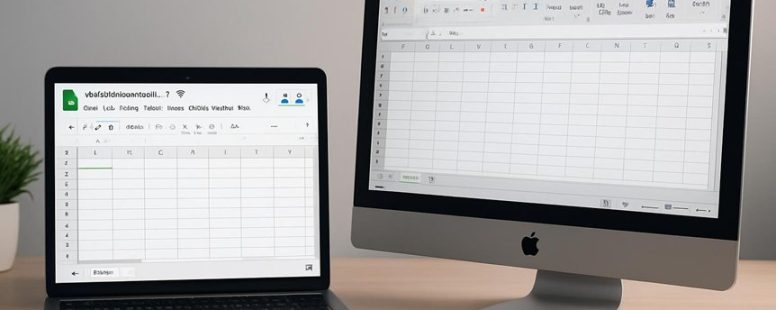
Switching from Excel to Google Sheets feels like upgrading from a dusty filing cabinet to a sleek, shared workspace where ideas flow effortlessly.
Imagine collaborating in real-time, voices blending into a harmonious chorus without the chaos of conflicting versions.
But beneath its breezy ease lies a trade-off—Sheets struggles with heavy data crunching and offline work, like trying to run a race with a weight on your ankle.
Surprisingly, leveraging Google Sheets can turn into a secret weapon for quick teamwork, transforming tedious tasks into a seamless dance.
Knowing when to choose each tool can make your daily grind feel less like a slog and more like a smooth sail.
Collaboration and Sharing in Google Sheets and Excel
Google Sheets is great for collaboration because it lets many people work on the same sheet at the same time. When you edit a Google Sheet, you see the changes instantly. This helps everyone stay updated without waiting or sending emails.
Google Sheets also has permission settings and user roles. You can decide who can view, comment, or edit the sheet. Sharing links makes it easy to invite others to work with you. You can also set access controls so only certain people can make changes. Notifications let you know when someone updates the sheet, so you’re not left in the dark.
The version history feature is like a time machine. It shows all the changes made and lets you go back if needed. Comments in the sheet make talking to your team easy—no need for long email threads.
While Google Sheets is simple and fast for collaboration, it does have limits. If many people edit at once, it can slow down or cause conflicts. Also, internet issues can stop real-time updates from working smoothly.
Some people prefer Excel because it offers better control over large, complex data and works offline. But Excel’s sharing options are not as simple and real-time as Google Sheets.
In short, Google Sheets makes group work easier with real-time updates, easy sharing, and built-in communication tools. But for very big, complex projects or offline work, Excel might be better.
Core Functions and Formulas Compared
Core functions and formulas in Google Sheets and Excel are different, and knowing these differences helps you choose the right tool for your tasks. Google Sheets and Excel both use formulas to do calculations, but some formulas work in one and not the other. For example, Excel has features like Power Pivot that Google Sheets doesn’t have. On the other hand, Google Sheets offers easier collaboration since multiple people can edit at once.
When comparing, think about what you need most. If you want advanced data analysis, Excel might be better because of its extra features. But if you want simple sharing or working online, Google Sheets could be the better choice. Also, some formulas like VLOOKUP work in both, but others, such as FILTER, are only in Google Sheets. So, if you switch between these tools, you may have to change your formulas a lot.
Both tools also have automation options. Excel uses macros with Visual Basic for Applications (VBA). Google Sheets has Apps Script, which is based on JavaScript. These let you automate tasks, but they work differently and have different limits.
Formula Compatibility Differences
Google Sheets and Microsoft Excel are both popular tools for creating spreadsheets, but they don’t always work the same way. When you move a file from one to the other, some formulas may break or give errors. This is because their formulas have small differences in how they are written and how they behave.
The most common issue is that some formulas need slight changes in their syntax when switching between Sheets and Excel. For example, a formula that works in Excel might need a different way of writing in Google Sheets. Named ranges and array formulas also don’t always work the same way, which can cause confusion. Error handling functions, like those that catch mistakes in formulas, might give different results or need different setups depending on the platform.
If you work with both tools, understanding these differences is key to avoiding mistakes. It helps you keep your spreadsheets correct and saves you time. Knowing the small differences means your formulas will stay reliable no matter which platform you open them on.
Built-In Function Variations
Built-In Function Differences Between Google Sheets and Microsoft Excel
Excel and Google Sheets are popular tools for working with data. They both have built-in functions that help you do calculations, analyze data, and organize information. But they are not exactly the same. Here’s what you need to know.
Excel has more functions than Google Sheets. It offers a wider variety of advanced lookup, conditional, and mathematical functions. For example, Excel has functions like XLOOKUP and SUMIFS that are not in Google Sheets. If you need very complex formulas, Excel might be the better choice.
Google Sheets is easier to use. It has a cleaner interface and performs well when working with others online. Sharing and editing spreadsheets with a team works smoothly. Google Sheets also handles simple formulas fast and is great for quick tasks. If you work with a team or need simple calculations, Sheets can save you time.
Error handling and data checks are different in both. Excel gives more options for controlling errors and validating data. Google Sheets makes these tasks easier but with fewer options. So if you need detailed control and validation, Excel might be better.
Formula nesting limits are another difference. Excel allows more levels of nested formulas, which means you can build more complex calculations. Google Sheets has limits that are lower, so very complex formulas might not work in Sheets.
In short, if you rely on a big library of functions or need very complex formulas, Excel is often better. But if you want simple, easy-to-use tools for collaboration and quick tasks, Google Sheets is a good option. Knowing these differences can help you pick the right tool for your work and avoid frustration.
Automation and Scripting Options
Automation and scripting can save you a lot of time in your spreadsheets. If you do a lot of repetitive work, automating can make things easier. Both Google Sheets and Microsoft Excel have tools for automation, but they work a bit differently.
Google Sheets uses Apps Script, a simple way to create custom functions and automate tasks in the cloud. It’s easier for beginners and works well with Google’s other tools. For example, you can set it up to automatically send emails when a deadline is near or update data from a website.
Excel uses VBA, which is more powerful for deep automation. You can write complex scripts to handle complicated tasks. Excel also connects smoothly with other Microsoft programs like Word and PowerPoint. But VBA can be harder to learn if you’re new to scripting.
Here’s a quick comparison:
Google Sheets: Easy to start, great for beginners, cloud-based, simple custom functions.
Excel: More advanced scripting, better for complex tasks, strong integration with Microsoft apps.
Both let you automate tasks, but how easy or powerful they are depends on what you need.
If you want to save time, think about what fits your skills and the tools you already use. If you’re new to scripting, Google Sheets might be best. If you need complex automation, Excel could be worth the effort. Just remember, automation tools have limits. Sometimes, a quick manual fix is still faster than writing a script.
Offline and Online Access Compared
Offline access and real-time syncing are key factors when choosing between Google Sheets and Microsoft Excel. Here is what you need to know.
Google Sheets lets you work offline if you set it up properly. You can turn on offline mode in the Chrome browser, and then your files will sync automatically when you’re back online. This makes it easy to keep working even without internet. But if you forget to set it up, you might not be able to access your sheets offline.
Excel, on the other hand, has a clear advantage for offline use. You can open and edit your files directly on your computer without needing an internet connection. When you save the file, it updates automatically. If you use Excel with OneDrive or SharePoint, your files will sync online when you’re connected again. But if you don’t have internet, you can still work on your files without any problem.
Real-time syncing is also important. Google Sheets updates changes instantly when everyone is online. This is great for team projects where multiple people work together. Excel can do this too if you use cloud storage, but it might take a few seconds to sync changes.
However, both tools have limitations. Google Sheets offline mode can sometimes be tricky to set up, and syncing issues might happen if your internet drops unexpectedly. Excel files stored locally on your computer won’t sync unless you upload them to cloud services.
Availability Without Internet
Choosing between Google Sheets and Microsoft Excel depends a lot on how well they work offline. If you often work without internet, knowing which one is better offline matters.
Excel is better here because it lets you edit files fully offline. You can open, change, and save your spreadsheets without internet. It also works with many file types, so you can share files easily if needed. Plus, Excel has good backup options, so your data stays safe even if your computer crashes. For example, if you’re on a plane or in a place with bad Wi-Fi, Excel still works smoothly. But remember, you need to have the desktop app installed first.
Google Sheets can work offline too, but it takes some setup. You need to turn on offline mode first, which can be confusing. Its interface and version control are simpler, but without the internet, you might find it harder to see changes or recover previous versions. Google Sheets on your phone or tablet is good, but it’s not as powerful offline as Excel’s desktop app. So if you work mostly offline, Excel might be the better choice.
Both tools keep your data safe, even offline, but how well they do backups differs. Excel has strong backup features built-in, while Google Sheets backups depend on your setup.
In the end, if offline work is a priority, Excel’s offline features are more dependable. But if you don’t mind some setup and mostly work online, Google Sheets can still do the job. Just remember, no tool is perfect. Sometimes, offline features can be tricky to set up or use.
Syncing And Collaboration
Google Sheets and Microsoft Excel both let people work together and share data, but they do this differently. Here’s what you need to know to choose the right one for your needs.
Google Sheets is best if you want quick, real-time collaboration. When you edit a sheet, everyone sees changes instantly, whether they are on a computer or a phone. It works well on mobile devices, making teamwork easy even when you are on the go. If you leave the sheet offline, though, some features like version history might not work as well. Permissions and access controls are simple to set up, and leaving comments makes giving feedback easy. Google Sheets also notifies you immediately when someone makes a change. So, if you need teamwork that’s fast and flexible, Google Sheets is a good choice.
Microsoft Excel is better if you need powerful features and work offline most of the time. It can connect easily with other Microsoft tools like Word and PowerPoint, which is helpful for complex projects. Excel’s offline mode works well, so you can keep working even without internet. However, real-time editing depends on OneDrive, Microsoft’s cloud storage. User permissions and version history are good but not as quick for team editing. If you often work offline or need advanced tools, Excel might suit you better.
Some people might prefer Google Sheets for quick team projects and mobile use. Others might pick Excel if they need detailed analysis and offline work. Just remember, both tools have limits. Google Sheets can get slow with very large data files and depends heavily on internet. Excel offers more features but can be harder to learn and manage for teamwork. Think about what’s more important for you: instant collaboration or powerful offline features.
Sources: Google and Microsoft official support pages, user reviews.
Automation and Macros in Sheets vs Excel
Automation and macros help save time and reduce repetitive tasks in both Google Sheets and Microsoft Excel. But they work differently and have their own strengths.
Excel is best if you want fast, powerful automation. It uses Visual Basic for Applications (VBA), which lets you create complex scripts and custom functions. This makes Excel ideal for big tasks or when speed is important. But VBA can be tricky if you are not a coder, and learning it takes time.
Google Sheets uses Apps Script for automation. It is easier to learn and use, especially for beginners. You can write simple scripts in JavaScript, which is more familiar to many people. However, Google Sheets has some limits on how complex your macros can be, and it might be slower for very large or complicated tasks.
Here is a quick comparison:
Excel is better for high-speed automation and custom functions.
Google Sheets works well if you want easy setup and better integration with Google tools.
Both can automate tasks, but your choice depends on what you need and your comfort with each platform.
For example, if you need to automate a big data report quickly, Excel might be better. But if you want to automate sending emails from a Google form, Sheets could be simpler.
Keep in mind that Excel’s VBA is powerful but can be hard to learn. Google Sheets’ Apps Script is easier but has some limits. Think about what matters most to you — speed, ease, or flexibility — before choosing.
Sources: Microsoft’s official VBA documentation, Google’s Apps Script tutorials.
App Integrations: Google Workspace Vs Microsoft 365
Google Workspace and Microsoft 365 are two popular tools for work and productivity. The main difference is how they handle app integrations. If you want quick setup and easy app use, Google Workspace is a good choice. It works well with its own apps like Gmail, Google Drive, and Google Calendar. It also connects easily with many third-party tools, giving you flexibility to customize your workflow. For example, if you use a lot of Google tools daily, it feels natural and simple to add new apps.
Microsoft 365, on the other hand, is better if you need deep integration with desktop programs like Word, Excel, and PowerPoint. It also offers more options to customize workflows and better security features. If your work depends on complex data or strict security, Microsoft 365 might be better. Its ecosystem is more mature for advanced needs, but it can take longer to set up and learn.
Both platforms support third-party tools, but Microsoft’s system is often seen as more suited for large or complex businesses. Google Workspace is easier for small teams or those who want fast, straightforward apps.
Handling Large Data Sets and Complex Analysis
Here’s what you need to know:
Speed matters most. The best tools can process big files fast without freezing or crashing. For example, some programs like Tableau or Power BI can handle millions of data points quickly. If a tool slows down or crashes, it wastes your time and ruins your work. But, keep in mind, some tools might be fast with small files but slow with larger ones.
User experience counts. You want a program that is easy to use and makes complex analysis simple. Think of it like driving a car with smooth controls, not one that confuses you. For instance, tools with clear menus and step-by-step guides help you finish tasks faster. But if the interface is cluttered or confusing, you might get frustrated and make mistakes.
Data security is key. Your data should stay safe, even when you need quick access. Some platforms use encryption and strong login systems. For example, cloud tools like Google BigQuery or Amazon Redshift offer security features. However, sometimes tight security can slow you down or limit access. You need to find a balance between safety and usability.
Choosing the right platform means looking at how fast it works, how easy it is to use, and how well it keeps your data safe. No single tool is perfect for everyone. Some might be better for small projects, others for huge data sets. Think about your needs and test a few options if possible. That way, you can pick what fits best and gets your work done efficiently and securely.
Pricing Plans for Different Budgets and Teams
Choosing the right pricing plan is key to getting the most from Google Sheets or Microsoft Excel. If you have a small budget or only need basic tools, Google Sheets offers a free plan that works well for small teams and simple tasks. It is easy to use and cloud-based, so sharing and working together happen smoothly. But Google Sheets has fewer advanced features compared to Excel.
Microsoft Excel, included in Microsoft 365, usually costs more. It is better for larger teams or jobs that need detailed analysis and special functions. Excel also works well with other Microsoft apps like Word and PowerPoint. However, the higher price might be a problem if you only need simple spreadsheets.
Both tools let teams collaborate in real time and share files easily. Google Sheets makes this super simple because it runs in the cloud and is free for basic use. Excel’s plans are more suited for big companies that need powerful tools and integration.
To pick the right plan, think about your team size, what features you need, and how much you want to spend. For small teams or basic work, Google Sheets is a good choice and saves money. If you need advanced features and work for a big company, Excel might be better, but it costs more.
Mobile and Desktop Experience Compared
Google Sheets and Microsoft Excel are two popular tools for working with spreadsheets. They perform differently depending on whether you use a mobile device or a desktop computer. Here is what you need to know to decide which one works best for you.
On mobile devices, Google Sheets is usually more responsive and stable. It feels lighter and works smoothly on most phones and tablets. For example, if you want to quickly update a number or make a small change, Google Sheets is easier to do without lagging or crashing. But Excel’s mobile app can be slower and sometimes less reliable, especially on older devices.
On desktop computers, Excel offers faster performance and better tools for complex tasks. Its interface is designed for detailed work and can handle large spreadsheets easily. If you work with big data or need advanced features, Excel is often the better choice. However, Google Sheets on a desktop can be more user-friendly for quick edits and simple sharing, especially if you prefer working in the cloud.
Both apps have their strengths and weaknesses. Google Sheets is great for fast, easy edits and sharing across many devices. Excel is better for heavy-duty work, fast performance, and advanced options. Your choice depends on whether you need a simple, mobile-friendly tool or a powerful desktop application.
Choosing Google Sheets or Excel for Your Daily Needs
Choosing between Google Sheets and Excel depends on what you need them for each day.
Google Sheets is great if you want to work online and share your work easily. It has a simple design and works well with other Google tools like Gmail and Google Drive. For example, if you are planning a group project or tracking a team’s progress, Google Sheets makes it easy for everyone to see changes instantly. But it might not handle very big data or complex calculations as well as Excel.
Excel is better if you need advanced features. It offers more options for creating graphs and charts, and it has lots of templates. If you do a lot of number crunching or work with big data, Excel is faster and more powerful. It also supports many third-party add-ons. However, Excel can be harder to learn for beginners, and it works mostly offline. Plus, its security features are better for sensitive information.
Some may say Google Sheets is enough for simple tasks, and they are right. It is quick and easy for small projects. But if your work needs accuracy, deep analysis, or handling complex data, Excel might be the better choice despite its learning curve.
Think about your daily tasks. Do you need quick, collaborative work? Google Sheets will serve you well. But if your work requires precision and advanced tools, Excel is worth the effort. Remember, each tool has limits, so choose what fits your needs best.
To provide the best experiences, we use technologies like cookies to store and/or access device information. Consenting to these technologies will allow us to process data such as browsing behaviour or unique IDs on this site. Not consenting or withdrawing consent, may adversely affect certain features and functions.
Functional
Always active
The technical storage or access is strictly necessary for the legitimate purpose of enabling the use of a specific service explicitly requested by the subscriber or user, or for the sole purpose of carrying out the transmission of a communication over an electronic communications network.
Preferences
The technical storage or access is necessary for the legitimate purpose of storing preferences that are not requested by the subscriber or user.
Statistics
The technical storage or access that is used exclusively for statistical purposes.The technical storage or access that is used exclusively for anonymous statistical purposes. Without a subpoena, voluntary compliance on the part of your Internet Service Provider, or additional records from a third party, information stored or retrieved for this purpose alone cannot usually be used to identify you.
Marketing
The technical storage or access is required to create user profiles to send advertising, or to track the user on a website or across several websites for similar marketing purposes.