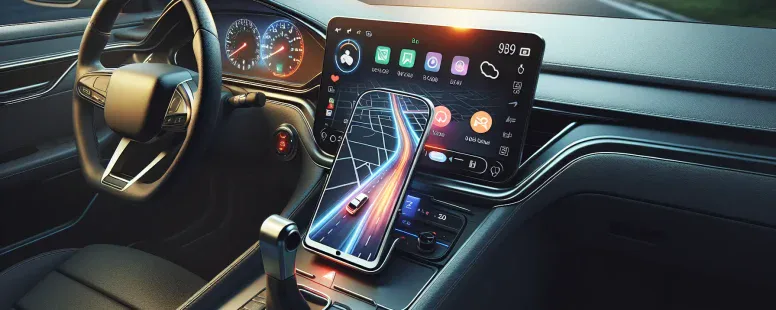
Picture cruising down the highway, your favorite playlist humming in the background, and turn-by-turn directions seamlessly guiding you. But what if your navigation app of choice isn’t just any map—it’s Waze, known for its real-time traffic updates and crowd-sourced alerts? You might wonder if Android Auto can handle this dynamic duo without a hitch.
The idea of pairing Waze with Android Auto sparks curiosity for good reason. Both tools are designed to make driving smarter and safer, but do they truly work together as smoothly as you’d hope? Whether you’re dodging traffic jams or hunting for the fastest route home, understanding how these technologies collaborate could transform your daily commute.
What Is Android Auto?
Android Auto is a software platform that connects your Android smartphone to your car’s infotainment system. It mirrors select apps from your phone, like navigation, music streaming, and messaging tools, onto the vehicle’s display screen. This integration creates a safer driving experience by reducing distractions.
You can control Android Auto using voice commands, touchscreen inputs, or physical buttons on supported vehicles. Popular apps supported include Google Maps for navigation, Spotify for music streaming, and Waze for crowd-sourced traffic updates. The platform focuses on accessibility while keeping drivers connected without compromising safety.
Android Auto is compatible with most cars manufactured after 2015 that feature built-in support or aftermarket head units from brands like Pioneer and Kenwood. A USB connection typically establishes the link between your phone and the car unless wireless functionality is available in newer models.
For seamless functionality, Android devices require at least version 8.0 (Oreo) of the operating system in most cases.
Understanding Waze And Its Features
Waze operates as a community-driven GPS app, offering real-time updates sourced from users. It provides navigation instructions and alerts for traffic jams, road hazards, and police presence. Unlike traditional navigation tools, Waze relies heavily on user contributions to enhance accuracy.
The app’s standout features include live traffic reporting, route customization based on preferences like avoiding tolls or highways, and integration with music apps such as Spotify. You can also use voice commands to interact hands-free while driving. For example, drivers often report accidents or speed traps directly in the app, helping others plan their routes effectively.
Waze supports carpooling through its dedicated platform called Waze Carpool. This service connects commuters traveling in the same direction to share rides and reduce travel costs. Also, it offers specific functionalities for motorcycles and electric vehicles by tailoring routes according to their unique needs.
The interface is designed for simplicity but remains feature-rich enough for advanced users who value detailed trip insights. If you’re navigating an unfamiliar area or dealing with heavy congestion during rush hours, Waze enhances situational awareness by displaying alternate paths dynamically.
Frequent updates ensure compatibility with modern devices and operating systems while incorporating user feedback into new releases.
Does Android Auto Work With Waze?
Waze is fully compatible with Android Auto, enabling you to access its navigation features directly on your car’s infotainment screen. This integration combines the best of both platforms for a seamless driving experience.
Compatibility Requirements
Your smartphone must run Android 8.0 (Oreo) or newer to use Waze with Android Auto. Ensure that your car supports Android Auto functionality, which is common in vehicles manufactured after 2015. A USB connection is typically required unless your vehicle offers wireless connectivity.
The latest version of the Waze app and an active internet connection are essential for real-time updates and route guidance. Without these, features like live traffic alerts or hazard notifications won’t function optimally.
How To Set Up Waze On Android Auto
Install Apps: Download and install the latest versions of both the Android Auto and Waze apps from Google Play.
Connect Your Phone: Use a USB cable or wireless pairing to link your phone with your car’s infotainment system.
Select Navigation App: Open the Android Auto interface on your car display, then choose “Waze” as your preferred navigation app from the menu.
Set Preferences: Adjust settings such as voice commands or map display options within the app for a personalized experience.
Benefits Of Using Waze With Android Auto
Pairing Waze with Android Auto enhances navigation by combining real-time data with a seamless interface. This integration optimizes routes, reduces distractions, and ensures safer driving.
Real-Time Traffic Updates
Waze excels at providing dynamic traffic updates sourced from millions of active users worldwide. You receive immediate alerts about accidents, road closures, or unexpected delays. For example, if there’s a sudden traffic jam caused by construction on your usual route, Waze suggests faster alternatives instantly.
The app updates continuously as conditions change—helpful during peak hours or long trips. Unlike traditional GPS systems that rely on static maps, Waze’s crowd-sourced model ensures accuracy in live situations. This functionality becomes even more reliable when displayed directly on your car’s infotainment screen via Android Auto.
Hands-Free Navigation
Hands-free navigation minimizes distractions while keeping your focus on the road. Voice commands let you search for destinations or reroute without touching the screen. Saying “Navigate to the nearest gas station” prompts Waze to display options and guide you accordingly.
With voice-guided turn-by-turn instructions integrated into Android Auto’s audio system, you avoid looking away from the windshield altogether. Features like lane guidance further enhance clarity during complex intersections or highway merges. If you’re unfamiliar with an area, this hands-free functionality can be invaluable for stress-free travel adjustments in real time.
Common Issues And Troubleshooting
Addressing common problems can streamline your experience using Waze with Android Auto. Below are practical solutions to frequent issues.
Connectivity Problems
Connectivity interruptions often occur due to outdated software or unstable USB or wireless connections. Ensuring your phone’s operating system is updated to at least Android 8.0 (Oreo) and that you’re using the latest versions of both Android Auto and Waze enhances compatibility.
Check your car’s infotainment system for firmware updates if disconnects persist, especially in models released before 2020. Use high-quality USB cables for wired setups, as low-grade cables may cause intermittent failures. For wireless connections, ensure both devices support wireless Android Auto functionality and maintain proximity without obstructions.
For example, if your device frequently disconnects during navigation, switching to a different USB port or restarting the infotainment system can help resolve temporary glitches.
Waze Not Displaying On Android Auto
Waze failing to appear on the dashboard screen usually stems from app permissions or misconfigurations within Android Auto settings. Verify that location services are enabled on your smartphone and that Waze has all necessary permissions such as access to GPS and background activity.
In the Android Auto settings menu, double-check that Waze is selected as an active navigation app under “Customized Launcher.” If it still doesn’t display, clearing cache files for both apps often fixes this issue by removing corrupted data.
An example would be when users install new updates but forget to grant permission changes—this oversight can block Waze’s integration until corrected in system settings.
Alternatives To Waze On Android Auto
Several navigation apps work seamlessly with Android Auto, catering to varied preferences and needs. Exploring these alternatives can help you find an app that suits your driving habits.
Google Maps
Google Maps integrates directly with Android Auto, offering accurate turn-by-turn navigation, real-time traffic updates, and detailed route planning. Its extensive database includes millions of points of interest like gas stations, restaurants, and landmarks. For example, you can locate nearby EV charging stations or explore alternate scenic routes while traveling.
HERE WeGo
HERE WeGo supports offline maps for over 100 countries and provides reliable navigation even without internet access. It also offers public transportation information in select cities, making it a comprehensive option for urban commuters.
Sygic GPS Navigation
Sygic provides advanced features such as head-up display (HUD) mode and speed limit warnings on Android Auto-compatible vehicles. The app focuses heavily on safety by integrating dashcam recording capabilities into its platform.
TomTom AmiGO
TomTom AmiGO emphasizes simplicity with ad-free navigation designed specifically for drivers seeking distraction-free guidance. It delivers community-based traffic alerts similar to Waze but uses a cleaner interface tailored for quick decision-making during commutes.
Magic Earth
Magic Earth combines free OpenStreetMap data with AI-powered features like lane assistance and weather condition overlays for better situational awareness on the road.
Scout GPS Link
Scout GPS Link gears towards social connectivity by enabling seamless location sharing among friends or family members, ideal during group trips or coordinating meetups at unfamiliar destinations.
Comparison Table of Key Features
App Name
Offline Maps Available
Real-Time Traffic Updates
Unique Feature(s)
Google Maps
Yes
Yes
Extensive POI database
HERE WeGo
Yes
Yes
Public transit integration
Sygic
Yes
Yes
HUD mode & dashcam functionality
TomTom AmiGO
No
Yes
Clean interface
Magic Earth
Yes
Limited
Weather overlays
Scout GPS Link
Limited
No
Location sharing
Choosing an alternative depends largely on your specific requirements—whether it’s offline accessibility, advanced safety tools like HUDs, or simpler interfaces prioritizing ease-of-use over feature density—and how well those align with your driving style under different conditions (e.g., long-distance vs daily commutes).
Conclusion
Pairing Waze with Android Auto transforms your driving experience by combining real-time navigation with a seamless in-car interface. This integration ensures you stay informed and focused, benefiting from accurate traffic updates and hands-free control.
With the right setup, Waze’s dynamic features work effortlessly on your car’s infotainment system, enhancing every journey. Whether you’re navigating daily commutes or unfamiliar routes, this powerful duo offers reliability and convenience that adapts to your needs.
To provide the best experiences, we use technologies like cookies to store and/or access device information. Consenting to these technologies will allow us to process data such as browsing behaviour or unique IDs on this site. Not consenting or withdrawing consent, may adversely affect certain features and functions.
Functional
Always active
The technical storage or access is strictly necessary for the legitimate purpose of enabling the use of a specific service explicitly requested by the subscriber or user, or for the sole purpose of carrying out the transmission of a communication over an electronic communications network.
Preferences
The technical storage or access is necessary for the legitimate purpose of storing preferences that are not requested by the subscriber or user.
Statistics
The technical storage or access that is used exclusively for statistical purposes.The technical storage or access that is used exclusively for anonymous statistical purposes. Without a subpoena, voluntary compliance on the part of your Internet Service Provider, or additional records from a third party, information stored or retrieved for this purpose alone cannot usually be used to identify you.
Marketing
The technical storage or access is required to create user profiles to send advertising, or to track the user on a website or across several websites for similar marketing purposes.