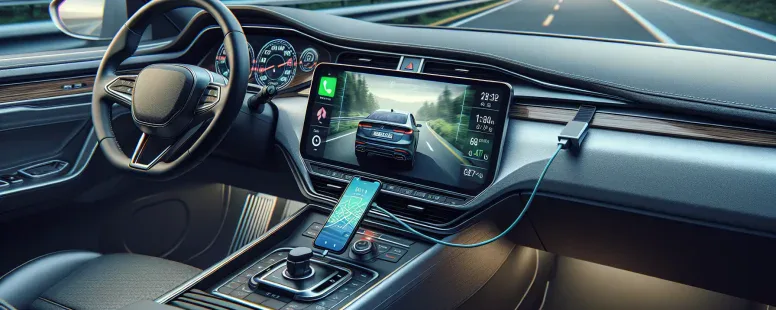
Navigating the open road has never been easier, especially with smart tools like Waze and Apple CarPlay at your fingertips. But as you juggle traffic updates, route suggestions, and hands-free controls, you might wonder—do these two powerhouse technologies work together?
Picture cruising effortlessly while real-time alerts guide you around delays or hazards without ever touching your phone. The idea sounds seamless, but understanding how (or if) Waze integrates with CarPlay can make all the difference in your driving experience. Whether you’re a daily commuter or an adventurous road-tripper, knowing this could change how you plan every journey ahead.
What Is Waze And Its Key Features?
Waze is a GPS navigation app developed by Waze Mobile and later acquired by Google in 2013. It provides real-time traffic data, route optimization, and user-driven updates for a more efficient travel experience. By leveraging crowd-sourced information, it helps you navigate through traffic congestion or unexpected road conditions.
Key Features of Waze
Real-Time Traffic Updates
Receive live traffic reports like accidents, road closures, or heavy congestion submitted by other users on the platform.
Dynamic Route Suggestions
Get alternative routes based on current traffic patterns to avoid delays and save time during commutes.
User Contributions
Benefit from updates about hazards, speed traps, or construction zones provided by millions of active users worldwide.
Integration with Spotify
Access your favorite playlists directly within the app without switching screens while driving.
Live ETA Sharing
Share your estimated arrival time with friends or family members so they can track your progress in real-time.
Voice Navigation Options
Choose from various voice options for turn-by-turn guidance tailored to your preferences.
Carpool Services Compatibility
Use Waze Carpool to connect with nearby drivers heading in the same direction for cost-sharing and reducing traffic emissions.
By combining these features with its community-powered system, Waze enhances both efficiency and connectivity in everyday travel scenarios.
What Is Apple CarPlay And How Does It Work?
Apple CarPlay is a platform that integrates your iPhone with your car’s infotainment system. It enables access to apps like Messages, Maps, and Music directly from the vehicle’s display. Designed for safer driving, it minimizes distractions by allowing hands-free control through Siri voice commands.
CarPlay functions by connecting your iPhone via USB or wirelessly if supported. Once connected, the interface mirrors key features of your device on the car’s screen. For example, you can make calls, send texts using dictation, or navigate with apps like Apple Maps or Waze.
The system supports third-party applications such as Spotify for music streaming and WhatsApp for messaging. This flexibility makes staying connected while driving more convenient and secure. Some vehicles also include steering wheel controls compatible with CarPlay.
To use Apple CarPlay effectively, ensure both your iPhone and vehicle are compatible. Devices running iOS 7.1 or later typically support this feature when paired with a compatible head unit in the car model year 2014 onwards (varies).
Does Waze Work With CarPlay?
Waze works seamlessly with Apple CarPlay, allowing you to access its navigation features directly from your car’s infotainment system. This integration makes it possible to enjoy real-time traffic updates and dynamic route planning without physically interacting with your phone.
Compatibility And Installation
To use Waze on CarPlay, ensure both your iPhone and vehicle support the feature. Your iPhone needs iOS 12 or later since earlier versions don’t include third-party app compatibility on CarPlay. Check that your car’s head unit supports CarPlay, which is commonly available in vehicles manufactured from 2014 onwards.
Connect your iPhone via USB or wirelessly if supported by your system. Once connected, locate the Waze app icon on the dashboard display. If it doesn’t appear, update Waze to its latest version through the App Store and restart both devices.
Navigating With Waze On CarPlay
Accessing Waze through CarPlay enhances navigation while driving by mirroring the app’s interface onto a larger screen. You can view live traffic reports, alternative routes, and hazards in an easily readable format. Voice commands via Siri enable hands-free operation—say “Navigate to [destination] using Waze” for quick directions.
The map design prioritizes clarity with minimal distractions for drivers. For example, visual indicators like road closures or police alerts are displayed prominently but don’t overwhelm the screen space.
Key Benefits Of Using Waze On CarPlay
Using Waze on CarPlay provides advantages such as reduced reliance on smartphones during travel. Features like automatic rerouting help avoid delays caused by accidents or construction zones based on crowd-sourced data from other users nearby.
Limitations Of Using Waze With CarPlay
Waze’s integration with CarPlay offers convenience, but certain limitations impact its functionality. Understanding these constraints helps you optimize your navigation experience.
Limited Screen Customization
You can’t fully customize the layout of Waze on CarPlay displays. The interface mirrors your iPhone’s version, restricting adjustments based on personal preferences or screen size.
Reduced Feature Set
Some features like reporting hazards or editing routes are less intuitive on CarPlay than on the mobile app. For example, adding custom stops or detailed map edits may require manual input from your phone instead of the car display.
Dependent On Internet Connectivity
Waze depends heavily on internet access for real-time updates and crowd-sourced data. If you lose connectivity in areas with poor network coverage, live traffic reports and alternative routing options become unavailable.
Compatibility Issues
Not all vehicles support wireless CarPlay, forcing you to connect via USB cables in older models. Also, using outdated versions of iOS or Waze can cause functionality errors when syncing between devices.
Battery Drain Concerns
Running both Waze and Apple CarPlay consumes significant battery power if not connected to a charger during long trips, leading to potential interruptions in navigation services without proper planning.
Audio Interruption Challenges
Voice prompts from Waze sometimes overlap with media playback through CarPlay’s audio system, causing difficulty hearing clear instructions while listening to music or calls simultaneously.
Addressing these limitations ensures optimal use of Waze within Apple CarPlay environments for safer driving experiences tailored to individual needs and preferences.
Tips For Optimizing The Experience
Keep Your iPhone Updated
Ensure your iPhone runs on the latest iOS version for compatibility with both Waze and CarPlay. Updates often include bug fixes and new features that enhance functionality, like improved Siri integration or better app performance.
Check Internet Connection
A stable internet connection is essential for real-time traffic updates and hazard alerts in Waze. Use cellular data as a backup if Wi-Fi signals weaken during your drive.
Customize Waze Settings
Adjust settings like voice navigation volume, preferred routes (e.g., avoiding toll roads), and map display preferences before starting your journey to minimize distractions while driving.
Organize App Layout on CarPlay
Reorganize CarPlay’s home screen to place Waze in a convenient spot for quicker access. Drag the app icon into the top row using your iPhone’s settings.
Avoid Battery Drain
Connect your phone via USB when using Waze with CarPlay to prevent rapid battery depletion caused by continuous GPS usage and screen mirroring.
Enable Night Mode Automatically
Use automatic night mode in Waze’s display settings to reduce glare during evening drives, improving visibility without manual adjustments.
Test Audio Balance
Adjust audio levels between music playback and navigation prompts within both the car’s infotainment system and the Waze app to avoid overlapping sounds or missed directions.
Use Voice Commands Frequently
Use Siri voice commands or Waze’s built-in assistant for hands-free operations like changing destinations or accessing saved locations, ensuring safer control of navigation tasks throughout trips.
Plan Routes Ahead of Time
Input destinations before connecting to CarPlay so that routes load instantly upon activation, reducing delays at departure points or while stationary at traffic lights.
Regularly Update Maps in Waze
Keep maps updated through automatic downloads enabled under Wi-Fi conditions; outdated maps can lead to incorrect routing suggestions due too missing recent road changes or closures.
Conclusion
Understanding how Waze and Apple CarPlay work together can transform your driving experience, offering convenience, efficiency, and safer navigation. By taking advantage of their integration, you’ll enjoy real-time traffic updates and dynamic route planning without distractions.
While there are some limitations to consider, optimizing your settings and staying prepared ensures a smoother journey. Whether you’re commuting daily or embarking on a road trip, this combination makes navigating easier and more enjoyable.
To provide the best experiences, we use technologies like cookies to store and/or access device information. Consenting to these technologies will allow us to process data such as browsing behaviour or unique IDs on this site. Not consenting or withdrawing consent, may adversely affect certain features and functions.
Functional
Always active
The technical storage or access is strictly necessary for the legitimate purpose of enabling the use of a specific service explicitly requested by the subscriber or user, or for the sole purpose of carrying out the transmission of a communication over an electronic communications network.
Preferences
The technical storage or access is necessary for the legitimate purpose of storing preferences that are not requested by the subscriber or user.
Statistics
The technical storage or access that is used exclusively for statistical purposes.The technical storage or access that is used exclusively for anonymous statistical purposes. Without a subpoena, voluntary compliance on the part of your Internet Service Provider, or additional records from a third party, information stored or retrieved for this purpose alone cannot usually be used to identify you.
Marketing
The technical storage or access is required to create user profiles to send advertising, or to track the user on a website or across several websites for similar marketing purposes.