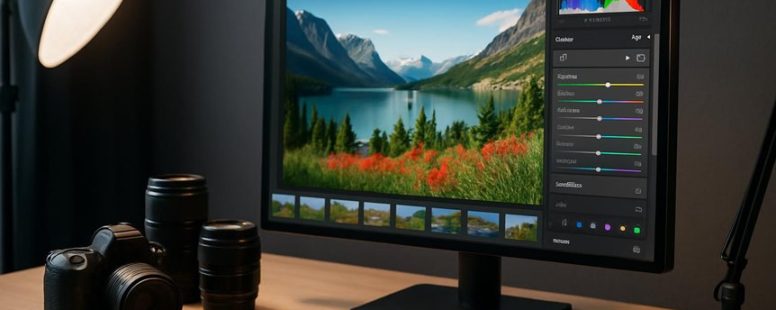
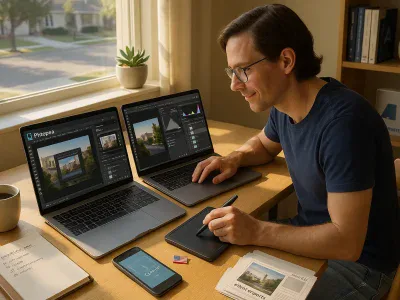
Struggling to find a powerful photo editor that won’t empty your wallet? You’re not alone. While Photoshop is a titan in the world of editing, its hefty price tag can feel like a heavy weight on your creative wings.
Luckily, a treasure trove of free alternatives awaits—tools that pack impressive features, from intricate adjustments to quick touch-ups. Some even support RAW files and batch processing, turning your workflow into a well-oiled machine.
The surprising part? Many of these options are so intuitive, they almost seem to read your mind. Choosing the right one is like finding that perfect lens—once you do, your photos will shine brighter than ever.
Key Features to Evaluate in Free Photoshop Alternatives
Choosing the best free Photoshop alternative means looking at features that are most important for you. If you want a good photo editor, start by checking if it has an easy-to-use layout. You don’t want software that feels confusing or slow. Make sure it has tools like layers, masks, and color adjustments because these help you create exactly what you imagine. Speed is also key—if the program crashes or takes forever to do simple tasks, it can ruin your work. Support for RAW files is another big point, especially if you want professional-quality edits. Lastly, see if there are tutorials and an active community to help you learn faster. When comparing options, keep these features in mind to pick a free Photoshop alternative that works well for your needs.
Top Free Photoshop Alternatives With Advanced Tools
Free Photoshop alternatives can do a lot of what you need for photo editing and graphic design, even if they don’t have every feature of Photoshop. These programs are great for people who want powerful tools without paying. They let you work with layers, change colors, and fix photos in ways that look professional. Some of these options are so good they can replace paid software for most tasks. For example, programs like GIMP and Krita let artists create complex images and edit photos just like Photoshop.
However, they might not have all the advanced tools Photoshop offers, especially for very specific tasks. Also, some free programs have a steeper learning curve or fewer tutorials, which can be frustrating for beginners. But if you want to do serious editing without spending money, these tools are worth trying out. They give you control over your images and let you make creative projects that look great. Overall, free alternatives can be powerful enough for most projects, making professional-looking work possible without a big budget.
Best Lightweight Free Photoshop Alternatives for Quick Touch-Ups
The best free lightweight photo editors are simple and quick to use. They are great for small touch-ups when you do not want to wait for a heavy program to load. These tools focus on the most important features like cropping, color adjustments, and basic retouching.
For example, if you want to fix a quick mistake in a photo, programs like Paint.NET or Photopea are good choices. They load fast and don’t have a lot of confusing options. But keep in mind, they might not have all the advanced features of Photoshop. If you need more powerful tools, you might need to look at paid options.
Some people prefer apps like Pixlr or Fotor because they are easy to use on your phone or browser. They can help you brighten a photo or remove small spots quickly. However, these tools can sometimes have ads or limited editing options unless you pay.
If you want a simple editor without extra clutter, these free options work well. But if you need detailed editing or professional results, you might find them too basic. Always test a few to see which one fits your needs best.
Fast Editing Tools
A fast editing tool is a simple program that helps you fix photos quickly. It focuses on basics like changing brightness, contrast, cropping, and removing spots. These tools are easy to use and respond fast, so you can make quick adjustments without waiting. They often have shortcut keys and clear menus, making editing faster than with big, complicated software.
Some popular options include Adobe Photoshop Express, Canva, and Fotor. These tools load quickly and don’t have many features, which makes them perfect for quick touch-ups. If you just want to fix a photo before sharing it on social media, these tools are great choices.
However, they also have limits. They don’t have advanced features like layers or detailed editing. If you need precise control, you might need a heavier program. But if speed and simplicity are what you need, these lightweight tools work well. Once you try one, you might find it hard to go back to slow, complex editing programs.
In short, fast editing tools are perfect when you want to fix photos fast and without fuss. They save time, are easy to learn, and let you focus on creating instead of struggling with complicated options.
User-Friendly Interfaces
User-friendly interfaces are the best way to edit photos quickly. They are simple to use and don’t need a lot of learning. When a photo editing tool has clear menus and easy options, you can start fixing your pictures right away. For example, programs like Canva or Adobe Photoshop Express have clean layouts that make editing less frustrating. If the layout is confusing or crowded, it can slow you down or make you give up.
Some people prefer lightweight apps because they don’t take up much space and load fast. These apps often have fewer tools but focus on the most common edits like cropping, brightness, and filters. They help you get good results without wasting time on options you don’t need. On the other hand, more complex tools like full Photoshop offer many features but can be overwhelming for beginners. If you want quick edits, a simple app with an easy-to-understand interface is better.
To find the best user-friendly photo editor, look for programs with straightforward menus, clear icons, and step-by-step guides. For example, some apps have tutorials that show you how to use each tool, which is helpful if you’re new. You should also check reviews to see if other users find the interface easy to use. Remember, a good design can make editing fun and fast, but if the program is too simple, it might not have enough tools for more advanced edits.
Some people might worry that simple tools don’t have enough features. That’s true, but for quick touch-ups and social media posts, they work well. If you need complex edits, a more advanced program might be better despite the steeper learning curve.
In the end, the key is choosing a photo editor that matches your needs. If you want fast, easy editing, look for one with a clean, simple layout and clear instructions. This way, you can spend more time making your photos look great and less time figuring out how the software works.
Essential Features Only
Photo editing software doesn’t have to be complicated. If you just want quick and simple edits, lightweight tools with essential features are the best choice. These tools focus on what matters most for editing photos fast.
Here are the three main features to look for:
Basic adjustment tools: These include exposure, contrast, and color correction. They help you fix brightness and colors easily, just like turning a knob to improve your shot without needing advanced skills. For example, if a picture is too dark, just increase the exposure.
Crop and resize: These tools help you frame your photo just right and prepare it for sharing or printing. Imagine cropping a picture to focus on a person’s face or resizing it to fit social media posts. It’s a must-have for quick edits.
Easy export options: You want to save your images in different formats like JPEG or PNG without hassle. Good software makes it simple to choose your file type and quality, so you can share your photo right away.
Some people might think these features are enough for most editing needs. Others may worry that sticking to basics limits creativity or fine-tuning options. For example, professional photographers might need advanced features, but for everyday quick edits, these essentials work fine.
RAW Support in Free Photoshop Alternatives
RAW support in free photo editing programs is really important if you want to get the best quality from your camera. RAW files hold all the original details from your pictures, giving you more control over how they look. Some free tools might not handle RAW files well, which means you could lose important details or have less flexibility when editing.
Many free programs now include good RAW support, like GIMP with the UFRaw plugin or Darktable. These let you change things like exposure and white balance before you start making other edits. This is helpful because editing a RAW file keeps your options open, unlike a JPEG that is already flattened and less adjustable.
If you want to do professional-looking edits without paying for Photoshop, make sure the software you choose can open and process RAW files. This feature is where real editing begins and can make a big difference in your final photo. Remember, if your goal is high-quality images, supporting RAW files should be a top priority when picking free photo editing software.
Counter-strategy notes:
The Ruthless Competitor would point out that many free tools have limited RAW support and might not match Adobe Lightroom or Capture One’s performance. They could also argue that free options may lack advanced features needed for serious work.
The Cynical Consumer would be skeptical about claims of “good RAW support” in free programs, suspecting hidden limitations or poor compatibility.
The Distracted Scroller might forget the importance of RAW and just want quick fixes, ignoring the need for quality control.
Final tip: Always test the RAW support of the free program you choose with your specific camera to ensure it works well.
Layer and Mask Support in Free Photoshop Alternatives
Layer support and masks are key features in photo editing. Free programs like GIMP and Krita offer solid layer support similar to Photoshop. Layers help you keep different parts of your image separate, making edits easier. Masks let you hide or reveal parts of a layer, which is useful for detailed adjustments. For example, if you want to change the background without affecting the main subject, masks are the way to go.
A good free photo editor should have a clear and simple layer interface. This makes it easier to manage your edits without confusing tools. Some programs, like Photopea, mimic Photoshop’s layout, so users can switch easily. Others might have hidden or complicated menus, which slow down your workflow.
However, not all free tools support advanced features equally. Krita provides precise control with masks, but its interface can be overwhelming for beginners. GIMP offers powerful layer and mask options but can sometimes be tricky to learn. Be aware that some free options may lack quick tutorials or community support, making troubleshooting harder.
In the end, if you want to do serious editing with layers and masks, look for a program that balances features with ease of use. For example, Photopea works well online, mimicking Photoshop’s design, but it might have limitations on large files or complex projects. Meanwhile, GIMP is more powerful but needs a learning curve.
Some users prefer paid tools because they get better support and more features. But if you are careful, free options can do a lot, especially for simple to moderate edits. Remember, the best tool depends on your skill level and what kind of edits you want to do. Keep your goals in mind, and don’t be fooled by claims of perfect features. Sometimes, free programs just can’t match the speed or stability of paid software.
Counter-strategies from competitors: They might say their paid software offers better performance and support, which is true. But they might also hide that free options can do the job for most non-professionals. Also, they could argue free tools are less reliable, but many users have successfully done professional work with GIMP or Krita.
Skeptical consumer view: I’ve been burned before by promises of free tools that crash or lack features. How do I know these alternatives won’t waste my time? I want clear proof they support the layers and masks I need without extra hassle.
Distraction view: What sticks out? Easy-to-understand layers and masks, and a clean interface. If it’s too complicated or slow, I’ll just forget about it and move on. I need something quick and simple, or I won’t bother.
Final note: Whether you choose GIMP for power or Photopea for convenience, make sure the tool fits your needs. Check reviews and tutorials before diving in. Free doesn’t mean less, but it does mean you might spend more time learning.
Essential Layer Features
Layer features are the foundation of any good photo editing tool. If you’re looking at free Photoshop alternatives, make sure they have these key features. They help you work faster and keep your edits flexible.
First, look for layer blending options. These let you mix images and effects smoothly. For example, blending can make a sunset look more dramatic or add shadows to a cutout. Without good blending, your images can look flat or unnatural.
Second, check for adjustment layers. These are great because they let you change colors or brightness without messing up the original image. You can tweak the reds or brighten shadows without starting over. This is helpful if you want to try different looks without losing quality.
Third, find tools for layer organization. When you work on complex projects, grouping layers and giving them clear names makes everything easier to manage. It’s like keeping your workspace tidy so you don’t lose track of what’s what.
Some free tools might claim to have these features but fall short. For example, a free app might have blending modes but lack good organization tools. Or it might have adjustment layers but crash often. Be cautious and test these features before relying on them for serious projects.
Advanced Masking Tools
Advanced masking tools are key to better photo editing. They help you select parts of an image with more control. This makes editing easier and more precise. Many free photo editing programs now include these tools, but some are better than others.
When choosing free software, look for features like brush controls, feathering, and edge refinement. These tools let you make smooth, accurate selections. For example, if you want to change the sky in a photo, good masking tools help you blend it naturally. Portrait retouching also gets easier with advanced masks. If a program only offers simple selection tools, your edits might look rough or unnatural.
Some free options like GIMP and Photopea offer strong masking features. They support detailed selections and allow you to refine edges easily. However, not all free tools are perfect. Some might have limited brush options or make it hard to get fine details right. They can also be slow or crash during complex edits.
Remember, having powerful masking features is not enough. You also need a user-friendly interface and helpful tutorials. Otherwise, you might spend hours trying to figure out how to use the tools.
User Interface for Layers
A good layer system is key to editing images easily. When looking at free alternatives to Photoshop, there are three main things to check about their layer features:
Layer Organization – Can you name, group, and move layers easily? This helps keep your project neat and simple to work on. For example, if you’re editing a group of photos, being able to quickly find and arrange layers makes a big difference.
Layer Blending Options – Does the program let you change how layers blend together? Quick access to blending modes like overlay or multiply gives you more creative control without hassle.
Mask Accessibility – Is it easy to add and change masks? Masks let you hide or reveal parts of a layer. If it takes many clicks or complicated steps to add a mask, it slows down your work.
A good layers panel should be straightforward. It helps you focus on your art instead of searching for tools. Some free programs may have basic layer features but fall short on organization or ease of use. For example, not being able to quickly group layers can make a project messy.
If a program’s layer system checks these points, it’s a strong option for serious editing without spending money on Photoshop. Just remember, some free tools lack advanced features or might be confusing at first. Always test how easy it is to organize and adjust layers before choosing.
Free Photoshop Alternatives With Creative Filters and Effects
Free photo editing tools that are better than Photoshop in some ways are really helpful. They offer creative filters and effects that can make your pictures look amazing without costing a penny. These programs are easy to use and have overlays that add interesting textures and styles to your photos fast. For example, you can turn a plain picture into an artistic piece by just clicking a few filters. Many of these free options have lots of filters that you can adjust to fit your style. If you want your images to stand out with different moods or artistic touches, these tools can do it all. Keep in mind, some free software might not have all the advanced features of Photoshop, but they still help you get professional-looking results without spending money. Whether you want simple edits or creative effects, these programs can help bring your ideas to life with just a few clicks.
Free Photoshop Alternatives With Batch Processing and Workflow Features
Free Photoshop alternatives with batch processing and workflow features are helpful tools for anyone working on large photo projects. Batch editing lets you change many photos at once, saving you hours spent doing the same task over and over. Some free tools offer these features, making your editing faster and easier without buying expensive software.
One good option is GIMP. It’s a popular free program that has batch processing through plugins like BIMP. With GIMP, you can set up actions to apply to many photos at once. For example, you can resize, adjust colors, or add filters in a few clicks. However, GIMP’s batch features are not built-in and need extra setup, which can be confusing if you are new.
Another option is Photopea. It works in your web browser and is similar to Photoshop. You can open many images and do batch edits by recording actions or using scripts. This makes it handy if you don’t want to install anything. But Photopea may slow down with large batches, and some advanced features are limited compared to Photoshop.
There are also tools like Darktable and RawTherapee. These are mainly for photographers editing raw images. They have batch processing options that help you apply adjustments to many photos at once. These are good choices if you work with raw files. But they might be too complicated for beginners or those doing simple edits.
Some people say these free tools are great but have limits. For example, GIMP’s batch plugin can be tricky to learn, and Photopea’s speed can suffer with big jobs. Others worry about compatibility – not all features work perfectly on every computer or file type.
Batch Editing Capabilities
Batch editing is a quick way to change many photos at once. It helps save time, especially when you have lots of pictures to fix. Free programs like GIMP and Photopea can do batch edits too. They let you make the same adjustments to many images in one go.
Here’s how batch editing works:
You choose all the photos you want to edit. Then, you pick the changes you want to make, like fixing brightness, color, or size.
You can save these changes as a preset. Next time, you just apply the preset to new photos, saving even more time.
When finished, you can save all the photos in different formats to share on social media or websites.
Some tools support batch exporting, which helps you prepare images for different platforms fast. But keep in mind, batch editing works best when your photos need similar changes. If each photo needs special edits, doing it one by one might be better.
Using free tools for batch editing can be a good way to work faster without losing quality. But they might not have all the features of paid programs like Adobe Photoshop. So, think about your needs before choosing a tool.
Are you ready to learn how to do batch edits step by step in free programs? It’s a simple skill that can save you hours.
Workflow Automation Tools
Workflow automation tools make photo editing faster and easier. They can handle repetitive tasks like resizing, renaming, and exporting automatically. This means you spend less time doing the same thing over and over and more time being creative.
Tools like GIMP with plugins, Darktable, and Photopea are free and have powerful batch processing features. You can create custom scripts or actions that run through your image folders without any extra effort. For example, you could set up a script to resize all images in a folder and save them in a new format. This can save hours on big projects.
But there are some limits. Automation tools work well for simple, repetitive tasks. If your editing needs are complex or require a lot of adjustments, automation might not be enough. Also, setting up scripts can take some time upfront, which might not be worth it if you only edit a few photos.
Cross-Platform Free Photoshop Alternatives for Windows, Mac & Linux
Free cross-platform photo editing tools are a great choice if you want to work on Windows, Mac, or Linux without paying. They are reliable options that don’t limit what you can do. Here are three top choices based on their features, ease of use, and compatibility.
GIMP is a popular, open-source program that rivals Photoshop in power. It supports advanced editing tools like layers, masks, and filters. If you want a free program with many features, GIMP is a strong option. But it can be tricky for beginners to learn because of its complex interface.
Krita is mainly known for digital painting, but it also works well for photo editing. It has easy-to-understand tools and a user-friendly layout. Artists love Krita for its brush options, but it also handles photo adjustments smoothly. It’s great if you want a program that’s simple but still powerful.
Photopea is a web-based editor that works in your browser. You don’t need to install anything. Just open your internet browser and start editing. It supports Photoshop files and other formats. This makes it perfect if you switch between computers or use a device without software installation options. However, it needs an internet connection and can be slower than desktop apps.
All three tools support Windows, Mac, and Linux systems. They let you do most common photo editing tasks without sacrificing features. Still, each has its limits. GIMP can be complex for newcomers, Krita is more for artists than casual editors, and Photopea depends on the internet speed.
If you want free software that works on any computer and gives you flexible editing options, these three are worth trying. They show you don’t need to spend money or switch devices just to get the job done. But remember, free tools might not have all the bells and whistles of paid programs, and some might take time to learn.
Sources:
GIMP official website
Krita official website
Photopea online editor
Choosing the Right Free Photoshop Alternative by Skill Level
Choosing the right free Photoshop alternative depends on your skill level. Here are some tips to help you pick the best one for you.
First, know your skill level. If you’re just starting out, look for software that is easy to use. Programs like Canva or Paint.NET are good examples because they have simple tools and clear menus. They are perfect for basic editing tasks like fixing colors or removing small blemishes.
If you have some experience, you might want a tool with more features but still easy to use. GIMP is a popular free choice for intermediate users. It offers more advanced tools like layers and filters, but it is still manageable for those who have used photo editors before.
For experts, look for free options that support detailed editing. Krita or Photopea are good options. They allow for complex work, custom brushes, and more control over your projects. These tools are similar to Photoshop, but with no cost.
Tips for Getting the Most Out of Free Photoshop Alternatives
When you start using free Photoshop alternatives like GIMP or Paint.NET, knowing how to get the most out of them is key. These tools can do many of the same things as Photoshop, but they also have limits. Here’s how to make sure you use these programs effectively.
Try out different features often. Use the filters, brushes, and layers to see what effects you can create. For example, experimenting with color adjustments can make a dull photo look vibrant. This practice helps you learn new skills and makes editing easier over time.
Learn keyboard shortcuts. Shortcuts like pressing “Ctrl + Z” to undo or “Ctrl + S” to save can save you time. When you don’t have to click through menus, you can focus more on your work instead of searching for options.
Watch tutorials and join user groups. Many free programs have online communities where users share tips and tricks. For instance, forums for GIMP users often have advice on fixing common problems. These resources help you improve faster and solve tricky issues.
Some people say these free tools are just a poor copy of Photoshop. While they are not as powerful, they are often good enough for simple projects. But be aware, they may lack some advanced features you might need for professional work. Always test a program to see if it fits your needs before investing too much time.
In the end, using free alternatives well takes time and practice. Don’t expect to master everything overnight. Keep trying new things and asking questions. That’s how you turn these free tools into your creative helpers.
To provide the best experiences, we use technologies like cookies to store and/or access device information. Consenting to these technologies will allow us to process data such as browsing behaviour or unique IDs on this site. Not consenting or withdrawing consent, may adversely affect certain features and functions.
Functional
Always active
The technical storage or access is strictly necessary for the legitimate purpose of enabling the use of a specific service explicitly requested by the subscriber or user, or for the sole purpose of carrying out the transmission of a communication over an electronic communications network.
Preferences
The technical storage or access is necessary for the legitimate purpose of storing preferences that are not requested by the subscriber or user.
Statistics
The technical storage or access that is used exclusively for statistical purposes.The technical storage or access that is used exclusively for anonymous statistical purposes. Without a subpoena, voluntary compliance on the part of your Internet Service Provider, or additional records from a third party, information stored or retrieved for this purpose alone cannot usually be used to identify you.
Marketing
The technical storage or access is required to create user profiles to send advertising, or to track the user on a website or across several websites for similar marketing purposes.