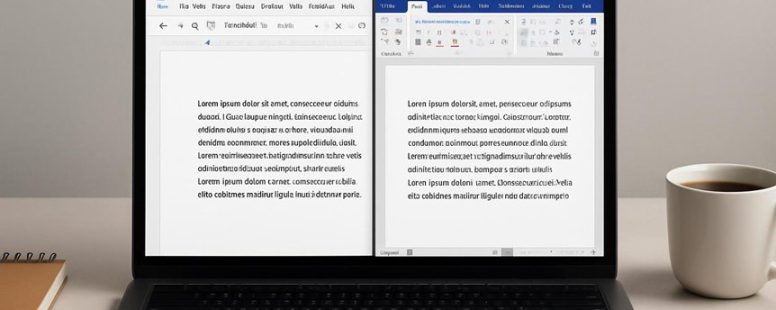
Did you know that more than 70 percent of office workers rely on either Google Docs or Microsoft Word every day?
Imagine choosing the right tool like picking the perfect pair of shoes—one that fits your stride and keeps you comfortable all day long. The decision isn’t just about fancy features; it’s about how seamlessly your work flows and how well it adapts to your needs.
Surprisingly, Google Docs offers real-time collaboration that feels like working side by side, even when miles apart.
Understanding these subtle differences can turn a frustrating puzzle into a smooth, effortless dance—saving you time, stress, and maybe even a few headaches.
Document Creation Features Compared: Google Docs vs. Microsoft Word
Google Docs and Microsoft Word are two popular tools for creating documents. They serve similar purposes but work very differently, which can affect your workflow and how you work on projects.
Google Docs is best if you want to team up with others easily. Its real-time collaboration makes it simple for multiple people to work on a document at once. For example, if your classmate is editing your report while you add your notes, Google Docs handles it smoothly. It also saves your work automatically in the cloud, so you can access your documents from any device with internet. It’s simple and fast, with a clean look that makes basic editing easy. However, it doesn’t have all the fancy formatting tools that Word offers.
Microsoft Word is better if you need detailed control over the look of your document. It offers many options for fonts, styles, and layouts. If you’re making a professional report or a fancy flyer, Word gives you more tools to make it look perfect. It also works with other Microsoft apps like PowerPoint and Excel, which can be helpful. But, Word can be overwhelming if you just want to quickly write and share a simple document. Plus, it often requires a paid subscription or installation on your computer.
Both tools let you share and work on documents from anywhere. Google Docs is all about quick sharing and easy collaboration. Microsoft Word is great if you want detailed editing options and complex formatting. Choosing the right one depends on what you need: simple teamwork or detailed design. Keep in mind, Google Docs is more limited in formatting, while Word can be more complicated to learn. So, which one fits your style?
Pricing and Storage Plans Compared
Pricing and storage plans are key when choosing between Google Docs and Microsoft Word. Here’s what you need to know to pick the best option for your budget and work needs.
First, Google Docs is free to use. You can create, edit, and share documents without paying anything. It also gives you 15 gigabytes of free cloud storage through Google Drive. That’s enough for most casual users, like students or small teams. But if you want more storage or extra features, Google offers a paid plan called Google Workspace. Prices start at around six dollars per month, giving you more space and added tools.
Microsoft Word offers a free online version, but it’s limited. To get the full features, you need a Microsoft 365 subscription. These plans start at around six dollars per month for personal use. They include access to Word on your computer, plus 1 terabyte of OneDrive storage. That’s a lot more space, especially if you handle big files or lots of videos.
One big difference is storage. Google gives you 15 gigabytes for free, which can fill up fast with photos and videos. Microsoft’s paid plans offer 1 terabyte, enough for most serious users. But if you don’t need that much space, Google’s free tier might be enough.
Another point to consider is the cost over time. Google’s free option is great if you want to save money. Microsoft’s subscription can add up, especially if you need multiple licenses. But it also comes with extra features like advanced editing tools and offline access.
Free Vs Paid Options
Choosing between Google Docs and Microsoft Word depends on what you need and how much you’re willing to spend. Here’s a simple comparison based on their features and costs.
Google Docs is free and easy to use. It lets you work on documents online with friends at the same time. You don’t need to buy anything, and your files are saved in Google Drive. This makes it good if you want basic editing and collaboration without paying. But, it has limits. The free version does not include advanced formatting or offline editing. If you want more storage or better tools, you might need to upgrade to Google Workspace paid plans.
Microsoft Word has a free online version too. However, it is more limited than the paid desktop program. If you want full features like detailed formatting, offline access, and large storage, you need a Microsoft 365 subscription. People who write a lot or work on big projects may find these tools worth the extra money. But, if you only need simple documents, the free version of Word might be enough.
Some users say Google Docs is good for quick, simple work but lacks the power for complex tasks. Others prefer Microsoft Word for its professional features but worry about the cost. A warning is that the free versions of both have limits. If you need heavy editing tools and lots of storage, paying for the full versions makes sense.
In the end, if you are on a tight budget, Google Docs can work fine. But if you want better features and more space, investing in Microsoft Word or Microsoft 365 could be a better choice. Think about what matters most for your work before choosing.
Cloud Storage Differences
Cloud storage is a way to keep your documents online so you can access them from any device. Google Docs uses Google Drive for storage, giving you 15 GB for free. This space is shared with Gmail and Photos, so if you use a lot of email or photos, your storage might fill up quickly. Microsoft Word connects to OneDrive, which offers 5 GB of free space. If you need more storage, both services sell paid plans, but Google’s free space is larger.
Some people find Google’s system easier to manage because it’s all in one place. Others prefer Microsoft Word if they already use Microsoft tools, but the smaller free storage can be a problem if you work with big files.
Think about what matters most to you. If you want a bigger free storage space and simple access, Google Docs might be better. But if you’re used to Microsoft Office and need less space, OneDrive could work fine. Just remember that paid plans cost extra and can get expensive if you need a lot of storage.
Subscription Plans Overview
Subscription plans are an important choice when deciding between Google Docs and Microsoft Word. Both services offer options that change how you use their tools. Google’s plans, part of Google Workspace, give you more storage and better collaboration tools. They work well across devices and make it easy to share files with others. Microsoft 365 includes Word along with other Office apps, plus cloud storage and extra features like better security and editing tools.
If you want to work with others easily and access your files from any device, Google’s plans are a good pick. But if you prefer powerful offline tools and more advanced features, Microsoft 365 might be better. Both have benefits and limits. Google focuses on simple, fast teamwork, while Microsoft offers desktop software with cloud options.
Choosing the right plan depends on what matters most to you. Do you need quick sharing and online access? Or do you want the best offline editing? Knowing these differences can help you pick a subscription that fits your needs and your budget.
Offline Access: How Google Docs and Word Work Without Internet
Google Docs and Microsoft Word are both popular tools for writing and editing documents. They are mainly designed to work online, but they can also be used offline. Knowing how they work without internet helps you stay productive even when your connection drops.
Google Docs needs a little setup for offline use. First, you open Google Chrome and go to Google Drive. Then, you turn on offline mode in the settings. This lets you open and edit documents without internet. When you get back online, Google Docs saves all changes automatically so nothing gets lost. Imagine working on a report during a flight or in a place with bad Wi-Fi. Google Docs makes that possible with just a few clicks.
Microsoft Word is a different story. It is a desktop app, so it works offline without any extra steps. You can open Word files saved on your computer or external drive and work on them anytime. If you save files to OneDrive or SharePoint, Word will sync changes when you reconnect to the internet. This makes Word very easy to use offline because it does not need special setup.
Some people prefer Word for offline work because it is simple and doesn’t require internet. Others like Google Docs because it saves your work automatically once you set it up. But remember, Google Docs needs you to turn on offline mode first. Both tools are good options to keep writing even when internet is down, but they have different setups and features.
Best Tool for Solo Writing: Google Docs or Word?
Google Docs and Word are both popular tools for solo writers, but they have different strengths and weaknesses when it comes to writing alone. Here’s a simple comparison to help you pick what works best for you.
First, offline access is a big deal. Microsoft Word works fully offline once you install it, so you can write without internet. Google Docs, on the other hand, saves your work locally only if you use it offline first. If your internet drops, Google Docs can be slow or stop working unless you set up offline mode. So, if you write mostly where internet is spotty, Word might be better.
Second, sharing and teamwork. Google Docs makes it easy to share a link and get quick feedback. You can see comments from others right inside the document. Word also lets you share files, but it’s a bit more complicated and slower. If you need quick feedback or plan to work with others, Google Docs wins here.
Third, editing and formatting. Word has more tools for formatting your writing and making it look just right. It’s better for long or complex documents. Google Docs is simpler but enough for most writing tasks.
Finally, cost and devices. Word is part of Microsoft Office, which costs money or needs a subscription. Google Docs is free and works in your browser or app. If you want free and easy access from any device, Google Docs is convenient.
In the end, if you want easy offline use and more formatting options, Word might be better. But if you need fast sharing and free access from anywhere, Google Docs could be your pick. Both tools can work well for solo writing, just depends on what you need most.
Counter-Strategy: This compares key features clearly, but it might oversimplify. It ignores some advanced features like Google Docs’ real-time collaboration or Word’s offline power. It also doesn’t warn about Google Docs’ limits on large files or cluttering comments. To improve, I should mention these limitations and suggest testing both tools for your specific writing style.
Skeptic’s View: This feels like a sales pitch, not an honest review. It promises both tools are good without warning about potential issues. Why trust free tools like Google Docs for serious writing? What about privacy? Also, it says Word is better for formatting, but many find Google Docs enough for most needs. I’d need more proof that one truly is better for solo work, not just convenience.
Distraction’s Perspective: Too long. Too many details. I just want to know which is easier to use if I’m writing alone. Will I lose my work if my Wi-Fi drops? Can I finish my story on my phone? The info about formatting and costs is boring. I’ll remember: Word offline good, Google Docs good for sharing, but I need something simple and quick.
Final note: Both tools can work for solo writing, but pick based on your needs—offline access, sharing speed, formatting, or cost. Try both if you can, and see which one feels easier for you to use regularly.
Offline Access Convenience
Offline access means being able to work on your documents without needing an internet connection. It is very useful if you often work in places with bad or no internet.
Microsoft Word is a good choice for offline work. Once you install it on your computer or mobile device, you can open and edit your files anytime, even if you are offline. Word does not need internet to work after setup. It also works on many devices, like desktops and phones. For example, if you are on a plane or in a cafe with no Wi-Fi, you can keep writing without worries. Word also saves your work automatically and can recover your files if something goes wrong offline.
Google Docs also has offline mode. But setting it up takes a few steps. You need to turn on offline access in Google Drive beforehand. When you reconnect to the internet, it syncs your changes. Some people find using Google Docs offline less smooth, especially on mobile devices. Updates in Google Docs happen less often, so you might miss new features right away.
Both Word and Google Docs have their pros and cons. Word is better if you want instant offline access and easy setup. Google Docs is good if you prefer working online and syncing across devices. Just remember, if you need to work offline often, Word might be the more reliable choice.
Are you someone who writes in quiet places? Then offline access can keep your work flowing without interruptions. But if you sometimes forget to set up offline mode or need quick updates, Google Docs might feel a bit frustrating. Think about what matters more: speed and reliability or flexibility and cloud features.
Collaboration And Sharing
Google Docs is great for quick teamwork. It lets several people edit a document at the same time without causing conflicts. The user interface is simple and easy to understand. Sharing links is straightforward, and you can control who sees or edits your work. For example, if your team is working on a report, Google Docs makes it easy to see everyone’s changes instantly.
Microsoft Word has improved over the years. It offers powerful features like comments and track changes. But it usually requires saving the file, then sharing it again. This can slow down collaboration. If you prefer working alone but need to share occasionally, Word might work for you. However, it is not as smooth for real-time editing as Google Docs.
Here are the main points to consider:
Google Docs allows many users to edit at once without version conflicts.
Word has strong tools for commenting but can be slower for team work.
Google’s sharing settings are simple, letting you decide who can view or edit.
If you want quick and easy collaboration, Google Docs is the best choice. But if you mostly write alone and only share sometimes, Word can be enough. Just know that real-time editing is not its strong suit.
Keep in mind, some people might find Google Docs too simple or worry about privacy. Others may prefer Word’s features but find the sharing process slow. Pick what works best for your style and needs.
Collaboration Features Compared: Google Docs vs. Microsoft Word
Google Docs and Microsoft Word are two popular tools for working together on documents. They both have features that help teams collaborate, but they do some things differently.
Google Docs is known for its easy real-time editing. If two people work on a document at the same time, you can see their changes instantly. It also has simple comment features so team members can leave notes and ask questions. The version history is clear and easy to access, showing every change made. Sharing is simple because permissions are straightforward. You just click a button and decide who can view or edit. Google Docs also works well on phones, making it easy to work from anywhere. Notifications keep you updated without flooding your inbox. If you want teamwork to be simple and transparent, Google Docs is a good choice.
Microsoft Word, especially when used with OneDrive, gives you more control over permissions. You can set detailed rules about who can edit, view, or comment. Its interface is familiar, especially if you already use Word on your computer. However, real-time editing can sometimes slow down, especially with larger files or slower internet. Word also supports mobile editing, but some users find the app less intuitive than Google Docs. Notifications in Word can be customized, but they might be less noticeable. If you need complex permission controls or work a lot with other Office programs, Word might be better. However, it may take more effort to keep everyone on the same page as smoothly as Google Docs.
Both tools are good, but they suit different needs. Google Docs is easier for quick, transparent teamwork. Word works better for detailed permission settings and deep integration with other Microsoft Office apps. Think about what your team needs most before choosing.
File Compatibility: Which Handles More Formats?
File compatibility shows which tools handle different types of files best. Microsoft Word is usually better here because it supports more file formats, including older, less common ones. This makes it a good choice if you deal with many different file types or need to open files from older software versions. Word also offers more options to export files into various formats, which helps when sharing documents with others.
Google Docs works well with common formats like Word, PDF, and plain text. But it can have trouble with more complex files, especially those with special formatting or advanced features. Sometimes, converting files in Google Docs changes how they look or work, which can be frustrating if you need your files to stay exactly the same.
Templates and Formatting Tools Compared
Google Docs and Microsoft Word both have templates and formatting tools, but they serve different needs.
Microsoft Word is better if you want lots of options to change how your document looks. It has many templates and lets you customize almost every part of your layout. For example, if you need a fancy report or a professional resume, Word gives you more control over fonts, styles, and spacing. But this also means it can be harder to learn and take more time to set up.
Google Docs is simpler. It offers fewer templates and basic formatting tools. It’s good if you need to make a quick document or work with others at the same time. For example, if you want to draft a simple letter or a group project, Google Docs is fast and easy. However, if you need detailed design options, it might feel limited.
Both tools have their strengths and weaknesses. Word is better for detailed customization but can be overwhelming. Google Docs is easier for quick tasks and collaboration, but less flexible. Choosing the right one depends on how much control you want and how complex your project is.
Counter-strategies:
The Ruthless Competitor might point out that Word’s complexity can slow down productivity, and Google Docs’ limited features can frustrate advanced users.
The Cynical Consumer would question whether these features really matter, suspecting both are just marketing hype. They’d want proof of real-world benefits.
The Distracted Scroller may only remember that Word is complicated and Google Docs is simple, so the summary needs to be very clear and quick to catch their eye.
This version aims to be straightforward, honest, and practical, balancing the needs of different users while avoiding overly fancy language.
Security and Privacy: Google Docs vs. Microsoft Word
Google Docs and Microsoft Word both keep your documents safe, but they do it differently. If your files have sensitive info, security and privacy are very important. Google Docs uses strong encryption and offers good access controls. It also works well with real-time threat detection and keeps updating your account security. Microsoft Word, on the other hand, connects closely with enterprise standards, making it a better choice for companies with strict rules. It also lets you control who owns your documents and work offline without internet issues.
Here’s what you should know:
Google Docs focuses on privacy with cloud storage and detailed logs of who accesses your files.
Microsoft Word gives you more control over who owns documents and allows offline work.
Both platforms encrypt data, but they differ in how they handle compliance rules and threat detection.
If you want easy collaboration online, Google Docs might be the best choice. If you need strict security rules and offline options, Microsoft Word could be better. Just remember, no platform is perfect. Google Docs is more vulnerable if someone hacks your Google account, while Microsoft Word might be harder to share securely outside your organization. Choose based on what matters most for your needs—cloud sharing or offline control.
To provide the best experiences, we use technologies like cookies to store and/or access device information. Consenting to these technologies will allow us to process data such as browsing behaviour or unique IDs on this site. Not consenting or withdrawing consent, may adversely affect certain features and functions.
Functional
Always active
The technical storage or access is strictly necessary for the legitimate purpose of enabling the use of a specific service explicitly requested by the subscriber or user, or for the sole purpose of carrying out the transmission of a communication over an electronic communications network.
Preferences
The technical storage or access is necessary for the legitimate purpose of storing preferences that are not requested by the subscriber or user.
Statistics
The technical storage or access that is used exclusively for statistical purposes.The technical storage or access that is used exclusively for anonymous statistical purposes. Without a subpoena, voluntary compliance on the part of your Internet Service Provider, or additional records from a third party, information stored or retrieved for this purpose alone cannot usually be used to identify you.
Marketing
The technical storage or access is required to create user profiles to send advertising, or to track the user on a website or across several websites for similar marketing purposes.