Free Alternatives to Snagit
Choosing the perfect screen capture tool is like hunting for a hidden gem—easy to overlook but invaluable once found.
Imagine capturing a fleeting moment on your screen with a click, then effortlessly editing or sharing it without hiccups.
I’ve explored several free Snagit alternatives that transform simple screenshots into powerful visuals.
Some feel like a breeze to use, while others have quirks that slow down your workflow.
The surprising bonus? A few of these options offer built-in cloud storage, making your screenshots accessible anywhere.
Ready to discover the contenders that can elevate your screen capturing game?
Key Features to Consider in Free Snagit Alternatives
The best free alternative to Snagit should have clear screen capture features. It needs to be reliable and easy to use so you can quickly take full-screen shots, window captures, or scrolling screenshots without trouble. Think about how simple it is to click and save your images—if the tool feels complicated or slow, you might get frustrated and give up.
Next, look at the user interface. A clean and straightforward design helps you find options fast. You shouldn’t need a manual just to know where to click. If the layout is confusing or cluttered, it wastes your time and can make you miss important features. Ask yourself if the tool feels natural to use. Would you enjoy working with it every day?
Editing tools matter too. The best free options offer basic editing like cropping or adding arrows, but they shouldn’t be so complicated that you get overwhelmed. For example, a simple way to highlight a mistake in a screenshot is better than a bunch of confusing options that make editing longer.
Finally, consider how you can save or share your screenshots. Good tools make exporting your images in common formats like PNG or JPEG easy. They should also let you share directly to email or social media if needed. If exporting is a pain or limited, you might waste time trying to work around it.
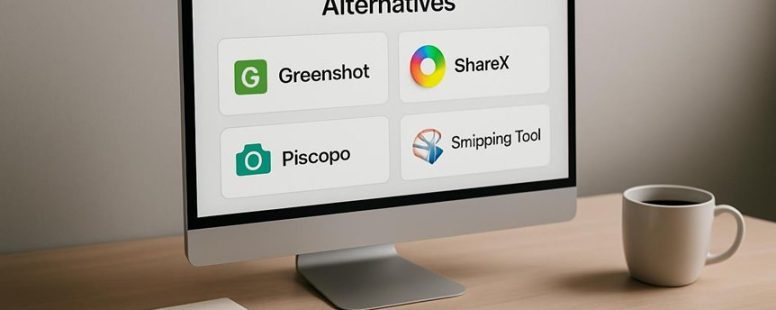
Some free tools like ShareX or Greenshot do a good job covering these basics. But be cautious—free doesn’t always mean perfect. Some may lack certain features or have ads. Always check reviews and test a few options before sticking with one.
How to Choose the Right Free Snagit Alternative for Your Workflow
Choosing the right free Snagit alternative is easier when you know what to look for. The best tool should match how you like to capture, edit, and share screenshots. For example, if you prefer using keyboard shortcuts, pick a tool that supports your favorite keys. If smooth user experience matters, test a few options to see which feels easiest to use. A good tool saves you time and makes your work faster.
Some features are more helpful than others. Quick annotation tools can save time when you need to add notes fast. Easy cloud sharing makes it simple to send screenshots to teammates. Remember, a tool with lots of features isn’t always better. The right one is the one that works well with your routines.
On the other hand, beware of tools that promise too much but don’t deliver. Some free options may lack good editing features or may be slow. Always check reviews or try out a few options before settling. For example, Greenshot and ShareX are popular free choices that many users find useful. But they might not be as simple as paid tools like Snagit.
In the end, pick a tool that feels natural for you. It should help you do your work faster, not slow you down. Think about your usual tasks and test several options. This way, you’ll find a free Snagit alternative that fits your style and makes your screen captures easier.
Best Free Snagit Alternatives for Basic Use
Free Snagit Alternatives for Simple Screenshots and Videos
If you want easy tools for taking screenshots, recording videos, and doing simple edits, there are some free options that work well without extra features to confuse you. These tools are good for quick, everyday tasks. They won’t make you learn complicated software, and they are easy to use.
One popular choice is Greenshot. It’s simple, fast, and lets you grab full screens or parts of your screen. You can save images instantly or send them to programs like Word or email. But Greenshot doesn’t record videos, so if you need that, you might want to look elsewhere.
Another good option is ShareX. It has many features but is still easy enough for beginners. You can take screenshots, record videos, and even add basic edits like arrows or text. It’s perfect if you want a free tool that’s powerful but not overwhelming. Keep in mind, the interface can look a little busy at first.
Loom is a free tool mostly used for quick video recordings. It’s great for making short how-to videos or sharing your screen with friends or coworkers. Loom is very simple to start, but if you need more editing tools, you’ll need to look for other options.
If you want something very lightweight, Windows Snipping Tool or Mac’s Grab tool are also free and easy. They don’t do videos, but they’re perfect for quick screenshots.
Some people say free tools are not as good as paid ones like Snagit. That’s true sometimes, especially for advanced editing or high-quality recordings. But for basic needs, these free options work fine. Just remember, they may have limits or ads.
In the end, pick the tool that matches what you need most. Do you want quick screenshots, simple videos, or both? Try one of these and see if it’s easy enough for you. If not, there are more options out there.
Easy Screenshot Tools
A simple screenshot tool is a program that helps you quickly take pictures of your screen. Unlike Snagit, which has many features, these tools are easy and fast. They are perfect if you just want to grab part of your screen without fuss. Many free options are available that can do the job well. They let you add simple marks, like circles or text, to your screenshots. This makes it easy to show someone what you mean. These tools usually start fast, don’t use much computer power, and are easy to learn. If you need quick pictures with small edits, simple screenshot tools are a good choice instead of complicated programs like Snagit. But keep in mind, they might not have advanced features for editing or recording videos.
Basic Video Capture
If you want to record your screen easily without dealing with complicated features, a simple video capture tool is what you need. These tools focus on just recording your screen and capturing audio clearly. Here are four free options that work well:
- OBS Studio – This is a free, open-source program that is powerful. It can record your screen and capture sound smoothly. Many streamers use OBS because it works well for both live videos and recordings.
- ShareX – This tool is lightweight and simple. It’s great if you need quick screenshots or screen recordings without extra fuss. ShareX is good for basic needs but might lack some advanced options.
- FlashBack Express – Easy to use with a clear interface. It does a good job recording your screen and audio. This is a good choice if you want something straightforward.
- Loom – Designed for quick videos and sharing. It records your screen and microphone easily, making it perfect for sending quick updates or tutorials.
These tools are simple to use and focus on the basics: screen recording and audio. They are good options if you don’t want the extra features or settings that come with more advanced tools like Snagit. Keep in mind, some free tools might have limitations like watermarks or fewer editing options, but for just recording your screen, they are more than enough.
Simple Editing Features
Simple editing features are very helpful when you need more than just a screen shot. These tools let you do quick edits right after you take a picture of your screen. For example, you can add arrows, highlight important parts, or blur out private info. This saves you time because you don’t have to switch to another app. Some free programs, like Snagit alternatives, make these tasks easy and fast. They also let you crop or resize images quickly, so you don’t waste time on complicated edits. If you mainly need simple edits without extra features, look for software that focuses on these basic tools. Using these features keeps your work smooth and your messages clear without extra hassle.
Counter-strategy analysis:
- Ruthless Competitor: The claim that these tools are “easy and fast” might be overstated if interface is confusing. Needs examples of specific tools.
- Cynical Consumer: Assumes these features are simple; might be disappointed if they’re not intuitive.
- Distracted Scroller: Might forget the names or benefits; needs quick, memorable points.
Revised for all:
Simple editing features like highlighting, arrows, and blurring are key for quick screen captures. These tools help you communicate better without switching apps. For example, Snagit alternatives such as Greenshot or PicPick offer these options free. They also let you crop or resize images fast. But some free tools can be tricky to use or lack advanced options. If you only want basic edits and no extra fuss, pick an app with straightforward features. This keeps your workflow smooth and messages clear, saving you time and effort.
Best Free Snagit Alternatives With Advanced Editing
If you need free screen capture tools with good editing options, here are some top choices. These tools are better than basic screenshot apps because they let you make your images look more professional.
- ShareX is the best if you want powerful capture and editing. It can record videos too. You can add arrows, text, and shapes to your screenshots easily. It also saves files in the cloud, so sharing is fast. But, it can be a bit tricky for beginners.
- Greenshot is simple to use. It has a clear interface and lets you add highlights or notes quickly. It works well with most programs. However, it doesn’t have many video features, so if you need recordings, look elsewhere.
- OBS Studio is great if you want to record videos or live stream. It can handle complex workflows and shows performance stats. But, it isn’t meant for quick screenshots or basic editing, so it might be overkill for simple tasks.
- Lightshot is perfect if you want something simple. It lets you take quick screenshots and add basic annotations. Sharing is easy, but it doesn’t have advanced editing or cloud storage options.
Each of these tools has its own strengths and limits. If you want advanced editing and easy sharing without paying, these are good options. But remember, some tools can be hard to learn or might lack features you need later on. Always check if the tool fits your style of work before switching.
Best Free Snagit Alternatives for Easy Sharing
The best free alternatives to Snagit are tools that help you share screenshots and recordings quickly and easily. These tools are simple to use and don’t require much effort to get your files shared. For example, ShareX and Loom are popular because they let you capture your screen and then create a link you can send to others right away. You don’t have to spend time saving files or uploading them to different sites. They also let you add notes or highlights to images, which makes your message clearer.
Some people might worry that these tools don’t have all the advanced features of Snagit. That’s true. If you need detailed editing or professional-grade recordings, these free options might fall short. But if your main goal is to share quick screenshots or videos without hassle, they work great.
To use these tools, just install them, press a hotkey to capture your screen, then click to share. It’s that simple. For example, with Loom, you press record, and once you finish, a link is automatically generated. Clicking that link shares your capture instantly. This makes them perfect for quick feedback or collaboration.
However, keep in mind that free tools can have limits. ShareX, for instance, offers many options but can be a bit tricky to set up at first. Loom is easier but may store videos in the cloud, which some users might not want. Also, if you need advanced editing features, these might not be enough.
Pro Tips to Get the Most From Free Snagit Alternatives
To get the most out of free Snagit alternatives, you need to understand their screenshot features and improve your editing skills. Here are some steps to help you do that:
First, explore the screenshot options each tool offers. Some may let you capture a full screen, a selected window, or a specific area. Practice quickly using these options so you can snap images fast when needed. For example, Greenshot or ShareX are popular free tools with simple shortcuts.
Next, learn how to edit your screenshots efficiently. Basic editing like cropping, adding arrows, or text can make your images clearer. Many free tools have built-in editing features. Spend a few minutes practicing these so you can make your images look professional without extra software.
Finally, adapt your workflow. Set keyboard shortcuts for quick screenshots, and keep your favorite editing tools handy. This will save you time when you’re in a hurry. For example, if you’re making tutorials or sending quick feedback, fast captures and edits can make your work smoother.
Some people love these free options because they are simple and don’t cost money. But, they might lack some advanced features found in Snagit, like video recording or detailed annotations. So, decide what features matter most for your tasks before choosing a tool.
In short, mastering screenshot and editing features, practicing shortcuts, and customizing your workflow will help these free tools work best for you. It might take a bit of time at first, but you’ll save a lot in the long run.
Maximizing Screenshot Features
Using free Snagit alternatives can still give you good screenshot tools, but they might lack some premium features. Here’s how to get the most out of these free options for your work and teamwork:
- Organize your screenshots with built-in folders or labels. Sorting by date or project makes it easy to find what you need later. For example, if you save all images from a report in one folder, you won’t waste time searching.
- Use sharing features like cloud storage or shared folders. This helps teams stay on the same page and give feedback fast. Imagine sending a screenshot to your coworker and getting their input right away.
- Set up hotkeys to take screenshots quickly. Instead of clicking through menus, press a key combo to capture what you need. This saves time and keeps your flow going.
- Use different capture modes like full screen, window, or region. Pick the right one to get exactly what you want. If you only need a small part of your screen, don’t bother with full screen shots that need editing later.
Some free tools may not have every feature of paid options like Snagit. They might lack advanced editing or recording options. So, consider what features are most important for your work before choosing a tool. Also, be aware that free apps may have limits on storage or number of captures.
Enhancing Editing Capabilities
Editing screenshots for free can be simple, but it depends on what you want to do. If you want clear images that get your point across, you need to use the right tools and tricks.
First, even free screenshot tools like Greenshot or ShareX may not have fancy editing options. But you can still make your images better with some easy steps. For example, after taking a screenshot, use built-in annotation features to add arrows, text boxes, or highlights. These help explain what you’re showing clearly.
Next, zoom in on details by cropping your image. Cropping helps focus attention on important parts and makes your message clear. Many free apps let you crop easily. You can also blur sensitive info with simple shape tools, making your images look more professional without paying for expensive software.
Using keyboard shortcuts helps you work faster. For example, in ShareX, pressing certain keys can instantly add annotations or save your image. Learning these shortcuts can save you time.
Some people say free tools are limited, and that’s true. They may lack advanced editing features like masking or advanced filters. But for quick edits and clear communication, they work well enough. If you need complex editing, paid tools like Snagit or Photoshop might be better.
Streamlining Workflow Integration
Streamlining your workflow with free tools can save you time and hassle. If you want to quickly capture screens and organize your files, using free alternatives to Snagit is a smart move. Here’s how to set it up so it works smoothly.
First, pick tools that have open access to their APIs. That way, you can set up automatic tasks without manual work. For example, some free screenshot apps can connect directly to cloud services like Google Drive or Dropbox. This means your captures go straight to your storage without extra steps.
Next, use automation platforms like Zapier or IFTTT. These tools can link your screenshot app to other apps you use daily. For instance, you can create a rule that when you save a screenshot, it automatically gets renamed, shared, or added to a specific folder. This saves you from repetitive tasks that slow down your day.
Finally, set up simple workflows. For example, you might create a process where every time you take a screenshot, it is automatically uploaded, named with the date, and shared with your team. These small automations make your work faster and less frustrating.
Some people worry about security or setup time with these tools. It’s true, automation can sometimes cause errors or expose information if not set carefully. So, test your setup first and keep an eye on your files. Also, not all free tools support every feature, so you might need to switch apps or do some manual tweaks.
In the end, automation can save hours each week if done right. But don’t forget: sometimes manual checks are still needed to make sure everything works smoothly. There are good options out there, but always weigh the benefits against possible risks.
Limitations You Should Know About Free Snagit Alternatives
Free Snagit alternatives are popular because they cost less or are free. But they have limits you should know about before switching.
First, many free tools don’t have all the features Snagit offers. For example, Snagit has advanced editing tools and easy scrolling captures. Some free options might only let you take simple screenshots or recordings. If you need complex editing or specific options, these free tools might fall short.
Performance can also be an issue. On older computers, some free tools may run slowly or crash. This can slow down your work instead of helping. For example, if you use a free screen recorder on a slow laptop, it might freeze during important moments.
Support is another concern. With paid tools like Snagit, you get quick help from customer service. Free options often have limited help resources or slow responses. If you run into bugs or problems, it might take a long time to get help or find solutions online.
Update speed is different too. Snagit is updated regularly, fixing bugs and adding features. Free tools might not get updates often, so bugs stay longer and new features may never arrive. For example, a free tool might not work well with the latest Windows update.
Compatibility can be a problem as well. Some free options only work on certain operating systems or may not sync well with other software. If you switch from Snagit to a free tool, make sure it works with your device and programs.
Finally, learning how to use free tools can be harder. Some have fewer tutorials or simpler interfaces, which might make it take longer to learn. If you’re used to Snagit, switching might feel frustrating at first.
Knowing these limits helps you decide if a free Snagit alternative fits your needs. If you want quick support, advanced editing, and regular updates, paid tools might still be better. But if you only need simple screenshots and are okay with some trade-offs, free options could work. Just be careful and test them first.

- Mikrotik Product Comparison - October 20, 2026
- Fbm Competitors - October 19, 2026
- When Is Best for Pregnancy Test - October 18, 2026
by Ellie B, Site Owner / Publisher