Picture unlocking smoother gameplay and sharper visuals without very costly. If you’re diving into the world of adaptive sync technology, you’ve probably heard about FreeSync and wondered if it plays nicely with NVIDIA graphics cards. The idea of pairing these two might seem like mixing oil and water—but is it really?
For years, FreeSync was considered AMD’s exclusive territory, while NVIDIA users relied on G-Sync for tear-free gaming. But, times have changed, and tech boundaries are no longer as rigid as they once were. Could your NVIDIA GPU work seamlessly with a FreeSync monitor? Understanding this compatibility could open up new possibilities for your gaming setup, saving you money while enhancing performance.
Before making any decisions about your gear, it’s crucial to know how these technologies interact and what you stand to gain—or lose—from combining them. Let’s unravel the details behind this fascinating question.
What Is FreeSync?
FreeSync is a display technology developed by AMD to reduce screen tearing and stuttering during gameplay. It synchronizes the refresh rate of a monitor with the frame rate of a compatible GPU, creating smoother visuals.
Understanding FreeSync Technology
FreeSync uses Adaptive Sync, which is part of the VESA DisplayPort standard. This feature dynamically adjusts your monitor’s refresh rate to match your device’s output, eliminating mismatched frames. Unlike fixed-refresh-rate monitors that might cause lag or visual artifacts when frame rates drop, FreeSync-enabled displays adapt in real-time.
There are three tiers of FreeSync: Standard, Premium, and Premium Pro. Standard supports basic adaptive sync features up to 60 Hz or higher. Premium includes low framerate compensation (LFC) for smoother performance below a certain FPS threshold. Premium Pro enhances HDR support while maintaining low latency for high-quality visuals.
Benefits Of FreeSync For Gamers
Gamers experience reduced input lag and more fluid motion with FreeSync-enabled setups. By minimizing screen tearing during fast-paced actions like racing games or shooters (e.g., “Forza Horizon” or “Call of Duty”), it ensures immersive gameplay.
What Is NVIDIA G-Sync?
NVIDIA G-Sync is a proprietary display technology designed to enhance your gaming experience. It synchronizes the refresh rate of compatible monitors with the frame rate of NVIDIA GPUs, eliminating screen tearing and minimizing stuttering.
Key Features Of G-Sync
Hardware Module Integration
G-Sync requires a dedicated hardware module in supported monitors. This module ensures consistent performance by controlling refresh rates dynamically and reducing input lag.
Variable Refresh Rate (VRR)
The VRR feature allows smooth frame rendering by aligning monitor refresh rates with GPU output, even during fluctuating frame rates caused by demanding games.
Compatibility With High Dynamic Range (HDR)
Many G-Sync-enabled monitors support HDR for improved contrast, brightness, and color accuracy, enhancing visual quality in games like “Cyberpunk 2077” or “Forza Horizon 5.”
Support For Ultra-Low Motion Blur (ULMB)
ULMB reduces motion blur in fast-paced scenarios like first-person shooters or racing games by using backlight strobing instead of VRR when enabled.
Differences Between G-Sync And FreeSync
Technology Base
While FreeSync relies on VESA’s Adaptive Sync standard integrated into DisplayPort connections, G-Sync uses proprietary hardware modules for tighter performance control.
Cost Considerations
Monitors equipped with G-Sync are generally more expensive than FreeSync models due to the added cost of NVIDIA’s required hardware module.
GPU Compatibility
G-Sync works exclusively with NVIDIA GPUs like the RTX 3060 or GTX 1660 Ti, whereas FreeSync supports both AMD and select NVIDIA graphics cards starting from the GTX 10 series onward.
Performance Variability
Although both technologies provide smoother visuals, some users report that G-Sync delivers slightly lower input lag compared to FreeSync when gaming at high refresh rates above 144Hz.
Does FreeSync Work With NVIDIA GPUs?
FreeSync, originally designed for AMD GPUs, can work with certain NVIDIA graphics cards. This compatibility allows gamers to experience smoother visuals without investing in G-Sync monitors.
Compatibility Requirements
Your NVIDIA GPU must support Adaptive Sync over DisplayPort or HDMI to work with FreeSync. Models from the GeForce GTX 10 series (Pascal architecture) onward are compatible, including the RTX 20 and 30 series. Ensure your monitor is FreeSync-certified and connects via a compatible port.
For best results, both the monitor and GPU should operate within overlapping refresh rate ranges. For example, if your monitor supports 48-75Hz FreeSync but your GPU renders below this range during gameplay, screen tearing may still occur.
How To Enable FreeSync On NVIDIA GPUs
Activate FreeSync on an NVIDIA GPU through specific steps:
Enable Adaptive Sync on your Monitor: Access the display’s on-screen menu settings and turn on Adaptive Sync or FreeSync.
Update Graphics Driver: Install the latest version of NVIDIA drivers using GeForce Experience or download them directly from their official website.
Access NVIDIA Control Panel: Right-click on your desktop, select “NVIDIA Control Panel,” then navigate to “Manage 3D Settings.”
Test G-Sync Compatibility: In “Display” settings under “Set up G-Sync,” enable G-Sync for full-screen mode or both windowed/full-screen modes based on preference.
After completing these steps, test functionality by running games that allow frame rates within your monitor’s supported VRR range. Use tools like Nvidia Pendulum Demo to verify smooth performance without stuttering or tearing when paired correctly with a compatible setup.
Performance And User Experience
NVIDIA GPUs working with FreeSync monitors provide a unique gaming experience. Understanding performance metrics and potential challenges ensures optimal use of this combination.
Testing & Benchmarks
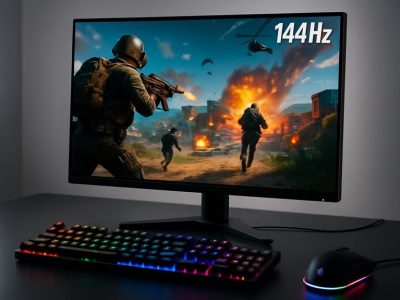
Testing validates how well FreeSync performs with NVIDIA GPUs. Results from benchmarks show that enabling FreeSync on supported NVIDIA cards, like the GTX 10 series or newer, reduces screen tearing and stuttering during gameplay. For example, running competitive games such as “Fortnite” or “CS:GO” on a monitor with 144Hz refresh rate displays smoother motion when frame rates stay within the VRR range.
Frame timing consistency enhances user experience in graphically demanding titles like “Cyberpunk 2077.” Reports indicate minimal input lag differences between FreeSync and G-Sync at similar refresh rates. Use tools like NVIDIA’s FrameView software to measure latency while playing under varying conditions for precise insights into performance gains.
Potential Issues And Limitations
Certain limitations arise when using FreeSync with NVIDIA GPUs. Compatibility depends heavily on overlapping refresh rate ranges; mismatched settings result in screen tearing during rapid scene transitions. Monitors labeled as “FreeSync Premium” might not always guarantee seamless operation if features aren’t fully supported by your GPU.
Some users report flickering issues in darker scenes or menus when VRR activates outside optimal conditions. Firmware updates resolve many problems, but not all manufacturers provide frequent patches for older models. Also, system configurations impact results—low-end CPUs bottlenecking high-performance GPUs reduce the benefits of this setup significantly.
Test multiple game genres to identify specific compatibility issues before investing in new hardware combinations for gaming setups reliant on adaptive sync technologies.
Is FreeSync Worth It For NVIDIA Users?
Using FreeSync with NVIDIA GPUs provides smoother visuals and reduced screen tearing without the cost of a G-Sync monitor. This section explores its value based on budget considerations and performance comparisons.
Cost-Effectiveness
FreeSync monitors offer a more affordable entry point for adaptive sync technology. While G-Sync displays often include proprietary hardware that increases their price, FreeSync relies on VESA’s Adaptive Sync standard, eliminating additional manufacturing costs. For instance, 27-inch QHD monitors with FreeSync can start around $200-$250, whereas similar G-Sync models may exceed $400.
NVIDIA users benefit by pairing mid-range GPUs like the GeForce GTX 1660 or RTX 3060 with budget-friendly FreeSync monitors. But, ensure your GPU supports VRR to unlock these advantages fully. Investing in a compatible setup saves money without sacrificing significant gaming quality.
Comparing FreeSync Vs. G-Sync Displays
G-Sync offers premium features like ultra-low motion blur (ULMB) and consistent HDR support, outperforming some FreeSync implementations in high-end configurations. Yet benchmarks reveal minimal differences in input lag or frame timing when comparing mid-tier setups at refresh rates below 144Hz.
For example, competitive gamers using titles like “Valorant” report comparable experiences on both technologies when frames stay within VRR ranges (e.g., 48–120Hz). On darker scenes or edge-case scenarios, but, some flickering occurs on certain FreeSync panels due to inconsistent calibration standards.
Although G-Sync guarantees seamless compatibility across supported hardware, many certified “G-Sync Compatible” FreeSync monitors meet similar performance levels when paired with GeForce cards from the GTX 10 series onwards. Balancing cost savings against desired feature sets helps determine which display suits your needs better.
Conclusion
Deciding whether to pair an NVIDIA GPU with a FreeSync monitor eventually depends on your gaming needs and budget. With proper setup, you can enjoy smoother visuals and reduced screen tearing at a lower cost compared to G-Sync monitors. While there are some limitations to consider, the performance differences for most users are minimal, especially in mid-tier setups.
By understanding compatibility requirements and testing your system, you can achieve an optimal gaming experience without overspending. Balancing affordability with desired features ensures you make the best choice for your setup.
To provide the best experiences, we use technologies like cookies to store and/or access device information. Consenting to these technologies will allow us to process data such as browsing behaviour or unique IDs on this site. Not consenting or withdrawing consent, may adversely affect certain features and functions.
Functional
Always active
The technical storage or access is strictly necessary for the legitimate purpose of enabling the use of a specific service explicitly requested by the subscriber or user, or for the sole purpose of carrying out the transmission of a communication over an electronic communications network.
Preferences
The technical storage or access is necessary for the legitimate purpose of storing preferences that are not requested by the subscriber or user.
Statistics
The technical storage or access that is used exclusively for statistical purposes.The technical storage or access that is used exclusively for anonymous statistical purposes. Without a subpoena, voluntary compliance on the part of your Internet Service Provider, or additional records from a third party, information stored or retrieved for this purpose alone cannot usually be used to identify you.
Marketing
The technical storage or access is required to create user profiles to send advertising, or to track the user on a website or across several websites for similar marketing purposes.