Photoshop is powerful, but you don’t always need its subscription model or steep learning curve. Picture opening an app that starts fast, matches the tools you use most, or runs entirely in your browser while still letting you edit layered files. The right alternative can save money, speed up your workflow, and sometimes offer more focused tools for illustration, layout, or quick social graphics. Below you’ll find practical guidance and clear comparisons so you can pick the editor that fits your projects, not the other way around.
What To Look For When Choosing A Photoshop Alternative
Start with the fact: choose software that matches your primary tasks. If you edit photos, you need raw support and layered editing. If you design for web or social, templates and export presets matter. If you illustrate, brush engines and pressure sensitivity are critical.
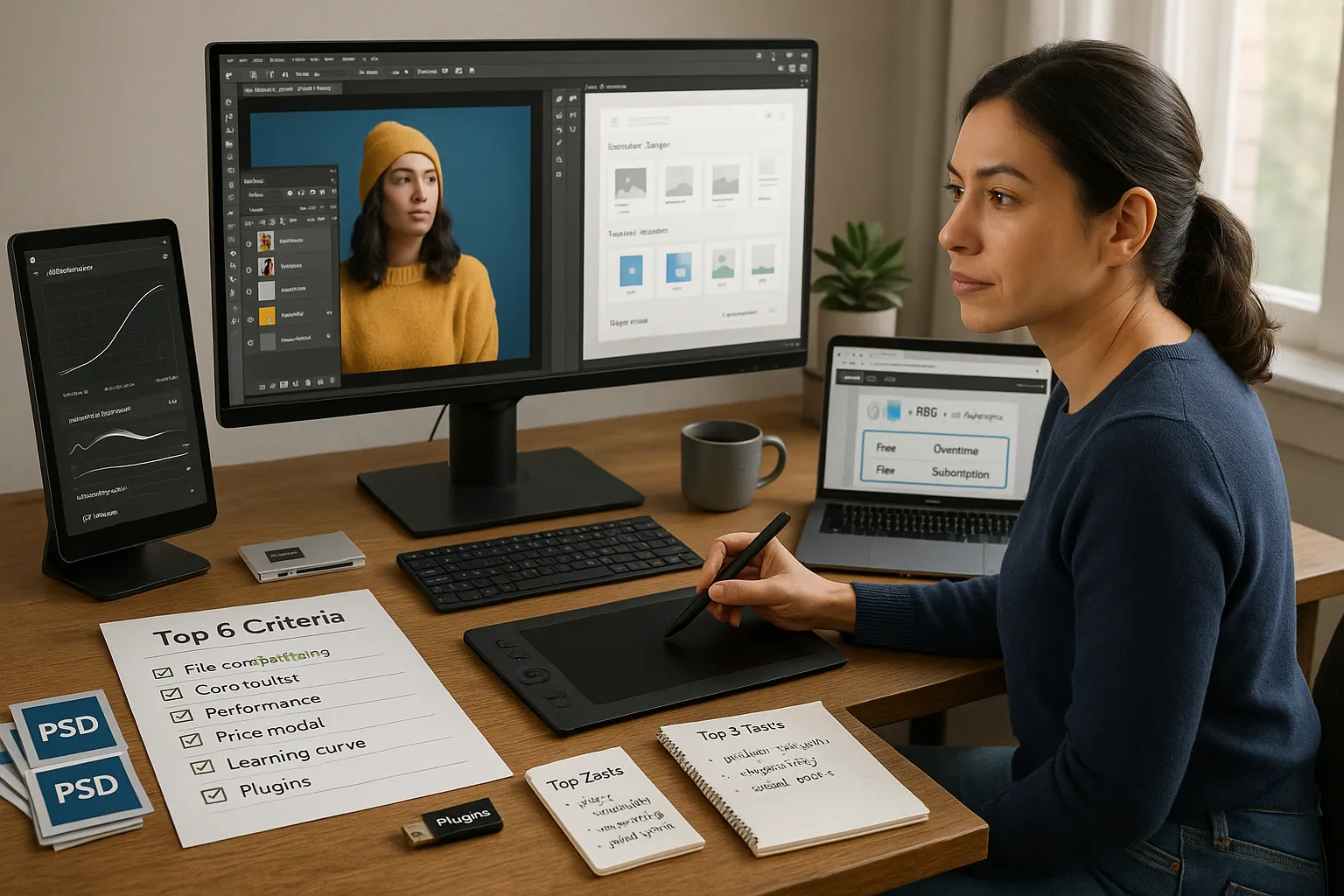
Key criteria to check before you download or buy:
File compatibility: Ensure the app can open PSD files, or it can export to formats your team uses. Photoshop compatibility reduces friction when you share files.
Core toolset: Confirm layers, masks, adjustment layers, and non-destructive workflows are available. These are standard for professional editing.
Performance: Look for GPU acceleration, native M1/Apple Silicon builds, or lightweight browser operation depending on your device.
Price model: Decide between free, one-time purchase, or subscription. Your budget and upgrade preferences should guide this.
Learning curve: Match interface complexity to your comfort level. Some apps mimic Photoshop: others simplify the UI.
Ecosystem and plugins: Check for extensions and community resources. Plugins can be lifesavers for niche tasks.
Practical tip: list your three most common tasks (e.g., portrait retouching, compositing, social posts). Then test alternatives against those tasks. That quick checklist reveals the tools that truly fit your workflow, and helps avoid feature bloat that will never get used.
Top Alternatives: Features, Strengths, And Use Cases
Fact first: several strong Photoshop alternatives exist, each with clear strengths for different users. Below are concise profiles and when you should try them.
GIMP — Free Open-Source Raster Editor
GIMP opens PSD files and offers layers, masks, and a solid set of retouching tools. For many people GIMP is the default no-cost pick.
Why choose it: it’s free, widely supported, and extensible with scripts and plugins (GIMP Python, Script-Fu). You get dodge/burn, clone, healing, and decent color tools. Recent releases improved the UI and added better color management.
Strengths and limits:
Strengths: Zero cost, active community, cross-platform (Windows, macOS, Linux).
Limits: Native PSD compatibility is imperfect for complex smart objects and adjustment layers. The brush engine and performance lag behind some commercial apps.
Use cases: Students, hobbyists, and anyone who needs capable photo editing without a subscription. If you’re on Linux, GIMP is often the practical choice.
Real-world note: A freelancer I know replaced Photoshop with GIMP for client mockups: they had to export layered TIFFs for handoff because client Photoshop flattened some effects. It worked, but required an extra step.
Affinity Photo — One-Time Purchase For Professionals
Affinity Photo offers a near-professional feature set with a single purchase. It reads PSD files well and includes advanced raw editing, panorama stitching, and extensive retouching tools.
Why choose it: you get high-end tools without recurring fees. Serif (the company) focuses on speed and precise controls: Affinity Photo runs natively on Apple Silicon and Windows.
Strengths and limits:
Strengths: Strong PSD support, professional photo tools, non-destructive live filters, and excellent performance.
Limits: Fewer third-party plugins compared with Photoshop and a smaller ecosystem.
Use cases: Professional photographers and designers who want powerful raster tools and predictable costs. It’s a solid switch if you dislike subscriptions.
Practical example: A boutique studio reduced software spend by moving to Affinity Photo for editing, while keeping one Photoshop seat for complex layered composites that relied on smart object workflows.
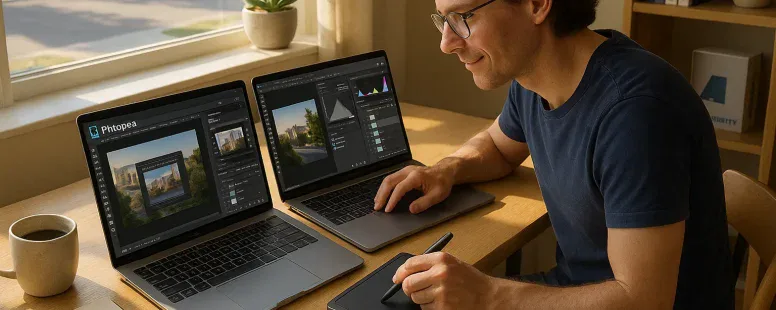
Photopea runs in your browser and opens PSD files with surprising fidelity. You don’t install anything: open the site and start editing.
Why choose it: instant access from any machine, including Chromebooks and public computers. PSD compatibility and many Photoshop-like tools make it a fast fallback.
Strengths and limits:
Strengths: No install, PSD and XCF support, familiar UI, free tier with ads.
Limits: Performance depends on your browser and device. Large files can be slow: offline use is limited though a Progressive Web App helps.
Use cases: Quick edits on the go, students, and occasional users who need Photoshop-like power without a license. It’s also great for teams that want a consistent interface without installing software.
Real-world tip: keep an eye on memory use, browser tabs can crash on very large layered PSDs. Save often.
Pixelmator Pro — Mac-Focused, Fast And Intuitive
Pixelmator Pro is optimized for macOS and Apple Silicon. It blends a clean interface with powerful tools for photo editing and basic design.
Why choose it: deep macOS integration, GPU acceleration, and a more approachable interface than Photoshop.
Strengths and limits:
Strengths: Fast performance on Macs, ML-based automatic enhancements, and strong color/edit tools.
Limits: macOS-only, and PSD compatibility is good but not perfect for very complex files.
Use cases: Mac users who want speed, simple design workflows, and good photo tools without the complexity of Photoshop. It’s popular with bloggers, social creators, and designers who prefer Apple workflows.
Krita — Painter-Focused With Strong Illustration Tools
Krita specializes in illustration and painting. It provides a professional brush engine, stabilizers, and brush customization that many painters prefer.
Why choose it: if you draw or paint digitally, Krita’s brushes and brush management beat general-purpose editors.
Strengths and limits:
Strengths: Excellent brush system, animation support, free and open-source.
Limits: Less emphasis on photo retouching: PSD support is improving but some layer effects may differ.
Use cases: Concept artists, illustrators, and comic artists who need expressive brushwork and frame-by-frame animation. Krita is also a cost-effective choice for students learning digital painting.
Canva — Simplified Design With Templates And Collaboration
Canva offers template-driven design, team collaboration, and export presets for social channels. It’s not a pixel-editor like Photoshop, but it solves many everyday design tasks faster.
Why choose it: speed and simplicity. Canva reduces friction with ready-made templates, drag-and-drop layout, and shared brand kits.
Strengths and limits:
Strengths: Easy learning curve, rich template library, built-in stock images and fonts, and strong collaboration features.
Limits: Limited pixel-level control, not ideal for heavy photo retouching or complex composites.
Use cases: Social media managers, marketing teams, and small businesses that need consistent branded graphics without design software training. Canva shortens the time from idea to published asset.
Example: A startup used Canva to produce weekly social posts, freeing their designer to focus on campaign assets that required more refinement.
How To Choose The Right Alternative For Your Workflow
Start with the fact: match the tool to your core tasks. If you edit raw files daily, pick an app with strong raw conversion and non-destructive edits. If you illustrate, choose a painter-focused app.
Decision steps you can follow:
Audit your tasks: list file types, common filters, and output formats you use weekly.
Test three contenders: spend an afternoon running the same job in each app (open a PSD, apply color correction, export). Practical testing reveals hidden pain points.
Check handoff needs: if clients or partners use Photoshop, verify PSD fidelity or set an export format everyone accepts (TIFF, flattened PNG, or layered PDF).
Consider platform and budget: macOS-only apps make sense for Apple shops: one-time purchases suit long-term cost control.
Warning: Don’t pick solely on price. A free app that slows your workflow costs you time. Balance upfront cost against time savings and compatibility.
If you work with a team, pick the tool that minimizes friction for the majority. You can keep a Photoshop seat for edge cases, but aim to standardize where possible.
Tips For Switching: File Compatibility, Shortcuts, And Plugins
Fact first: switching goes smoother when you plan for files, shortcuts, and plugin needs. Follow these hands-on tips.
File compatibility:
Test PSD import/export: open a few complex PSDs in the new app. Note which effects or smart objects change and plan workarounds.
Use common interchange formats when needed: layered TIFF, PDF, and high-quality PNGs reduce surprises.
Shortcuts and muscle memory:
Remap shortcuts to match Photoshop when possible. Affinity Photo and Photopea let you import or emulate Photoshop shortcuts: this reduces friction.
Practice the new shortcuts for two weeks. Muscle memory forms quickly when you repeat tasks.
Plugins and automation:
Inventory your essential plugins (e.g., Nik Collection, Portraiture). Check whether equivalents exist or whether you can batch-process in an external tool.
Use actions, macros, or scripts for repetitive tasks. Many alternatives support automation (Affinity has macros: GIMP supports scriptable plugins).
Collaboration and delivery:
Communicate format changes to clients: tell them which export formats you’ll deliver and why. This sets expectations and avoids rework.
Keep a fallback: retain a Photoshop license or a team member with Photoshop for complex PSDs that refuse to translate.
Vulnerable moment: when I flipped my small agency from Photoshop to Affinity, a client returned a file with embedded smart objects that didn’t translate. We learned to ask for flattened layers or exported assets up front, and that saved future headaches.
Next steps: pick one alternative, test it on a real project, and document the few quirks you encounter. Small notes save hours later.
To provide the best experiences, we use technologies like cookies to store and/or access device information. Consenting to these technologies will allow us to process data such as browsing behaviour or unique IDs on this site. Not consenting or withdrawing consent, may adversely affect certain features and functions.
Functional
Always active
The technical storage or access is strictly necessary for the legitimate purpose of enabling the use of a specific service explicitly requested by the subscriber or user, or for the sole purpose of carrying out the transmission of a communication over an electronic communications network.
Preferences
The technical storage or access is necessary for the legitimate purpose of storing preferences that are not requested by the subscriber or user.
Statistics
The technical storage or access that is used exclusively for statistical purposes.The technical storage or access that is used exclusively for anonymous statistical purposes. Without a subpoena, voluntary compliance on the part of your Internet Service Provider, or additional records from a third party, information stored or retrieved for this purpose alone cannot usually be used to identify you.
Marketing
The technical storage or access is required to create user profiles to send advertising, or to track the user on a website or across several websites for similar marketing purposes.