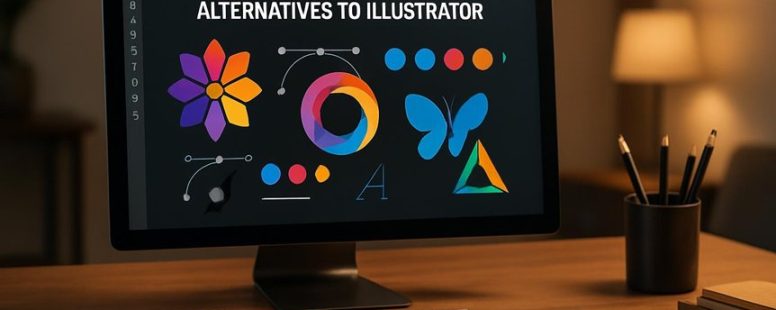
Tired of draining your wallet on pricey subscriptions for professional vector design tools? Imagine unlocking a world of creative freedom without the constant blinking cursor of a subscription fee.
Free alternatives now rival top-tier software, offering a fresh palette of features that can turn your ideas into vibrant masterpieces.
One surprising perk—many of these options are lightweight and snappy, making your design process feel like gliding on a smooth, flowing river.
Switching might be simpler than you think, opening new doors to your artistic journey without breaking the bank.
Why Switch From Adobe Illustrator to Free Vector Tools?
Switching from Adobe Illustrator to free vector tools can be a good choice for many designers. The main reason is that Adobe’s subscription costs can add up quickly, making it expensive to keep using. Free vector tools like Inkscape, Vectr, and Gravit Designer offer many of the same features for free. They give you options to customize vectors and create detailed designs just like Illustrator.
These free tools are also great for working with others. You can share your files easily and even collaborate in real time with clients or team members. Many of them have simple, easy-to-use interfaces that help you focus on your ideas instead of fighting with complicated menus. Even though they might not have every advanced feature that Adobe offers, they usually have everything most designers need for high-quality work.
Some designers worry about switching because free tools might lack some of the powerful tools in Illustrator. For example, if you do very complex animations or detailed photo editing, you might find these free options limited. But for most everyday projects like logos, icons, or simple illustrations, they work just fine.
In the end, switching to free vector tools can save money and make teamwork easier. But it’s smart to try out a few options first to see if they fit your style and needs. If you rely on Adobe’s features for your workflow, it might take some time to adapt. Still, for many, free tools are a practical and budget-friendly way to create great designs.
Top Free Vector Design Software for Beginners and Pros
When choosing free vector design software, the best tools are ones that are simple to use but still have strong features. A clear and easy interface helps me work faster, whether I am just starting out or I am experienced. Good software should let me create detailed and professional-looking graphics without needing to buy anything extra. For example, programs like Inkscape and Vectr are popular because they are free and easy to learn. But some tools, like Gravit Designer, also offer advanced features for more complex projects.
It is also good to think about what you need most. Beginners might want a simple program with quick tutorials, while pros might look for tools that support complex layers and detailed editing. Remember, free software can have limits. Some may not have all the features of paid options like Adobe Illustrator, but they are still great starting points.
In the end, the key is to find a balance between ease of use and powerful tools. Try out a few options, see which one feels right for your work style, and you will be on your way to creating awesome designs.
User-Friendly Interfaces
A user-friendly interface is key to a good experience with vector design software. It makes designing easier, especially if you are new or need to work quickly. The best programs have simple menus, clear icons, and not too many buttons or options cluttering the screen. These features help you focus on your work instead of struggling to find tools. Some software also lets you change the layout so you can put tools where you want. This saves time and keeps things organized.
Good onboarding is also important. Look for programs that offer easy tutorials or step-by-step guides. These help beginners learn faster and get comfortable with the tools. For example, Adobe Illustrator has helpful tutorials built into the app, making it easier to start. But keep in mind, some programs that are very simple may lack advanced features pros need. If you want more control, you might need a more complex tool, which can take longer to learn.
In short, a clean, flexible interface with helpful guides can make designing in vector software more fun and less frustrating. Whether you are a beginner or a professional, the right setup helps you work faster and enjoy creating new designs.
Advanced Design Features
Advanced design features are what make free vector software stand out for serious artists and designers. These features give you professional tools that help you create high-quality work. For example, they include options for applying color theory. This means you can choose precise color palettes and gradients that make your artwork look balanced and attractive. If you want your images to look professional, these tools help you pick the right colors and create smooth blends.
Another key feature is good control over typography. Good text design makes your words clear and easy to read. The software helps you follow standards for font size, spacing, and alignment, making your text look neat and professional. For example, when creating logos or posters, proper typography can make a big difference.
These advanced tools also let you work with curves, layers, and effects. This gives you the ability to make detailed, complex images without needing expensive software. A beginner can learn to make impressive designs, while experienced artists can push their skills further. However, keep in mind that mastering these features takes time, and some free software may have limits compared to paid options.
What Features Matter Most in a Free Vector Program?
Choosing a free vector program means focusing on features that help you create good designs without spending money. The two most important features are color management and file compatibility.
Color management is how a program handles colors. Good color management makes sure your designs look the same on different screens and when printed. For example, if you create a logo in one program, it should look the same when shared or printed. Programs like Inkscape and Vectr offer decent color controls, but some free tools may not handle colors well, leading to mismatched colors in your final work. If you want professional-looking results, check how well a program manages color profiles.
File compatibility is about which types of files the program can open and save. Popular formats like SVG, AI, and EPS are common in the design world. If a program supports these formats, it’s easier to share your work or switch to other tools later. For example, if you start a project in Vectr, you want to be sure you can export it as SVG for a website or send it to a printer. Some free programs may only support a few formats, which can cause problems when you need to collaborate or print your designs.
Some people prefer certain free programs over others. For example, Inkscape is popular because it has many features and good file support. But it can be tricky for beginners and may require some learning. Vectr is simpler but might lack advanced color controls. Both have their strengths and limits, so think about what is most important for your work.
Best Open-Source Vector Art Software You Should Know
Inkscape is one of the best open-source vector art programs you can use. It is popular because it offers many powerful tools for making detailed vector graphics. You can create logos, illustrations, and designs with it. It also supports many file formats, so sharing your work with others is easy.
Because Inkscape is open-source, you can change the software if you want or help improve it. It uses the GNU General Public License, which means you can use, share, and change the program freely without worrying about restrictions. This makes it a good choice for individuals or teams who want transparency and freedom in their tools.
Some users might find Inkscape a little complicated at first, especially if they are new to vector art. Also, it may not have all the features of paid programs like Adobe Illustrator. Still, many artists and students find it perfect for their needs because it is free and constantly improved by the community.
In short, Inkscape is a strong option for anyone looking for a free, open-source vector art software. It offers professional features and a friendly community that welcomes new users. Whether you’re just starting out or working on a big project, Inkscape can be a good tool to create detailed vector images.
How to Choose the Right Free Vector Tool for Your Needs
Choosing the right free vector tool depends on what you need and how skilled you are. If you want to keep your branding consistent, look for tools that help you use color theory well. These tools can help you pick colors that look good together and keep your brand looking professional.
For beginners, an easy-to-use interface is key. Tools like Vectr or Canva are simple to learn and good for starting out. Experienced designers might need more advanced features, like precise control over shapes and colors. Tools like Inkscape or Gravit Designer offer these options.
It’s also helpful if the tool has color palettes or style libraries. These features help you stay consistent across different projects. For example, if you pick a specific set of colors for your logo, these tools can save and reuse them easily.
Another thing to check is whether you can export your work in formats that work with other design programs. Common formats are SVG, PNG, or PDF. This makes it easier to share or print your designs later.
Some tools are better for quick projects, while others are more powerful and suited for detailed work. Keep in mind that free tools may have limitations like fewer features or watermarks.
In the end, picking the right tool is about balancing ease of use and features that help you reach your creative goals. Think about your project needs, your skill level, and how much control you want over the design process. That way, you’ll find a free vector tool that helps your ideas come to life.
Transition Tips: Moving From Illustrator to a Free Alternative
Switching from Adobe Illustrator to a free alternative is a big step, but it can be easier than you think. First, understand how these free tools handle teamwork. Some, like Vectr or Gravit Designer, let you share your work and leave comments in real time. This can help you stay connected with clients or friends working on the same project.
Next, think about licensing rules. Free programs often have different laws about using files for commercial work or sharing designs. For example, some may restrict how you use exported files or require you to give credit. Be sure to read the rules so you don’t accidentally break any laws.
It’s also smart to save your designs in common file formats like SVG or PDF. These formats work well across many programs, making your files easy to open and edit later.
Customizing your workspace helps you work faster. Many free tools let you change the layout or add shortcuts that suit your style. And if you’re new to these programs, look for tutorials online. Watching a few videos can help you learn tricks and feel more confident.
Some people love free options because they save money and can do most of what Illustrator does. Others warn that free tools sometimes lack advanced features or have limits on file size. For example, a free app might not support very complex vector graphics. So, think about what your project needs before you make the switch.
In the end, with some patience and practice, you’ll find that free vector programs can do a good job for many design tasks. They might not have everything Illustrator offers, but they can still produce high-quality work and support collaboration.
Resources and Community Support for Free Vector Software
Resources and community support are key when you use free vector software. These tools are free, but they can feel tricky at first. Joining community forums is a good way to get help. In these forums, you can ask questions, share your work, and learn from others who have more experience. For example, if you get stuck on how to make a smooth curve, someone might give you a quick tip that makes it easier. These forums often discuss common problems and creative tricks that help you improve faster.
Tutorial resources are also very helpful. You can find video guides, step-by-step articles, and free templates online. These are great for learning new skills or fixing problems. For example, a simple video might show you how to use the pen tool in Inkscape or Vectr, which are popular free vector programs. Following tutorials can make you feel more confident and save you time.
However, there are some things to watch out for. Community forums can sometimes be overwhelming if lots of people are asking questions at once. Also, not all tutorials are made for beginners, so you might need to find the right ones for your skill level. Still, using these resources can make your experience with free vector software much easier and more fun. Participating actively can help you get the most out of your tools and improve your design skills faster.
Subscription vs. Free: Which Vector App Fits Your Budget?
A vector app can be free or require a subscription. If you want a free tool, it can save you money and might be enough for simple projects. Some good free options include Vectr and Inkscape. These tools let you create and edit vector images without paying anything. But they might not have all the advanced features that paid apps offer.
Subscription-based apps like Adobe Illustrator or CorelDRAW give you more powerful tools. They often have better options for professional work, like advanced editing and better support. However, they cost money each month or year. If you only need to make simple designs, a subscription might be more than you need.
When choosing, think about what features you need and how much you want to spend. For beginners or those on a tight budget, free apps can work well. But if you need high-quality work and more tools, a subscription might be worth it.
Cost Effectiveness Analysis
A subscription-based vector app costs money regularly, while free options do not. To see if a paid app is worth it, you should compare the features you need with what free apps offer. Subscription apps like Adobe Illustrator or Vectornator require ongoing payments that can add up over time. If you only need simple tools, a free app might be enough and save you money. However, if you need advanced features or more tools, paying for a subscription might be worth the cost.
Think about how often you will use the app. If you use it every day, paying for a subscription could be justified if it saves you time or helps you create better work. But if you only need it once in a while, a free app may be better for your budget.
Also, consider if premium features are really necessary. Sometimes, free apps have enough tools for basic projects. But if you want high-quality export options or special editing tools, a paid app might be more effective.
Keep in mind that subscription costs can pile up over years. For example, paying $10 a month adds up to $120 a year. Over time, those costs can be higher than buying a one-time app.
Feature Set Comparison
Choosing the best vector app depends on what features you need. Free tools like Vectr and Gravit Designer give you the basic tools to create vector images. They are good for simple projects but may not have advanced features like team collaboration or a large library of assets. Subscription apps like Adobe Illustrator have more features. They let you work with others in real time and offer more editing options.
When deciding, consider licensing. Free apps often have restrictions on how you can use your designs, especially for commercial work. Subscription services usually have clearer rules and allow more freedom. If you work with a team often or need the newest licenses, a subscription might be better. But if you just need basic design tools without paying every month, free apps can be enough.
Imagine you are making a logo for a small business. A free tool might do the job if you only need simple shapes. But if you are working on a big project with a team and need advanced editing, Adobe Illustrator might be worth the cost. Both options have their pros and cons, so choose what fits your work best.
Final Checklist: How to Pick the Perfect Free Illustrator Alternative
Choosing the best free Illustrator alternative is easier if you follow some simple steps. First, find out if the software has a good color palette. Can you easily create, edit, and manage colors? This is important because colors help make your designs look professional.
Next, check if the program supports common file formats like SVG, AI, or EPS. These formats are used a lot in design work, so you want to make sure you can open and save your files without problems. For example, if you want to share your work with others or move files between programs, compatible formats are a big help.
Then, consider how easy the software is to use. Is the interface simple and clear? If it feels too complicated, it might slow down your work. Also, look at features you need, like vector editing tools or layer management, to see if they are included. This helps you pick a program that matches your style and needs.
Another key point is whether the software works well on your device. Some programs run better on Windows, while others are better on Mac or Linux. Make sure it works with your operating system before you start.
Some people prefer free programs like Inkscape or Vectr because they are powerful and free to use. But remember, free tools might not have all the features paid programs offer. They may also have some limits, like fewer tutorials or less support.
Next Steps: Learning and Growing With Your New Vector Software
Once you pick your new vector software like Adobe Illustrator or Inkscape, start by learning the basic tools. These tools help you draw shapes, change colors, and move things around. Mastering these first will give you a strong base to work from. For example, learn how to use the pen tool to make smooth lines or how to fill shapes with color.
As you get comfortable, try exploring the more advanced features such as layers, gradients, and effects. These tools can help you make your designs look more professional and detailed. For instance, gradients can add depth to your art, making it look like it has shadows and light.
It is good to keep learning. Watch tutorials online, read guides, or join forums where other users share tips. Practice regularly and try creating different projects to improve your skills. Some people prefer starting simple with basic shapes, while others jump into complex designs right away. Both ways work, but starting small helps you learn faster and avoid feeling overwhelmed.
Master Basic Tools
The basic tools in your vector software are the foundation for creating good designs. The Pen tool is one of the most important because it helps you draw precise lines and shapes. To get started, try drawing simple lines and curves. Practice controlling the tool so your lines look smooth and natural. This helps build your confidence.
Color blending is another key feature. It allows you to mix colors to add depth and make your artwork look more realistic. For example, blending shades of blue and purple can give a sky a more natural look. Experiment with different blending options to see how colors change when mixed.
Focusing on these simple tools first is smart. They are the core skills you need to create more complex designs later. Don’t rush. Practice a little each day. Over time, you’ll become faster and more comfortable using these tools.
Some people find the Pen tool tricky at first. It takes patience and practice to master. Others might prefer easier tools like the shape builder. Both have their advantages and limits. The Pen tool offers precision, but it can be frustrating for beginners. The shape tools are simpler but less flexible. Try both and see what works best for you.
Explore Advanced Features
Advanced features are tools that help you make your designs look more professional and creative. Once you’re comfortable with the basic tools, trying out options like gradient meshes, custom brushes, or vector effects can really improve your artwork. These features add depth, shadows, and special touches that make your designs stand out.
For example, gradient meshes let you blend colors smoothly within shapes, creating a 3D look. Custom brushes help you add textures or patterns quickly, saving you time. Vector effects can create shadows, glows, or distortions that add more detail to your work.
Knowing which file formats your software supports is also key. Formats like SVG, PDF, or EPS are common and easy to share. If your software supports them, it makes working with others or printing your designs much easier.
Mastering these advanced options can make your artwork look more polished and professional. They give you more control and options to express your ideas. But be careful—overusing effects can make your work look cluttered. Experiment with these tools slowly and see how they can inspire new ideas. Some software, like Adobe Illustrator or CorelDRAW, offers these features, but they might have a learning curve.
In the end, exploring these features can help you create more versatile designs. Just remember to balance creativity with simplicity, and don’t be afraid to try new tools.
To provide the best experiences, we use technologies like cookies to store and/or access device information. Consenting to these technologies will allow us to process data such as browsing behaviour or unique IDs on this site. Not consenting or withdrawing consent, may adversely affect certain features and functions.
Functional
Always active
The technical storage or access is strictly necessary for the legitimate purpose of enabling the use of a specific service explicitly requested by the subscriber or user, or for the sole purpose of carrying out the transmission of a communication over an electronic communications network.
Preferences
The technical storage or access is necessary for the legitimate purpose of storing preferences that are not requested by the subscriber or user.
Statistics
The technical storage or access that is used exclusively for statistical purposes.The technical storage or access that is used exclusively for anonymous statistical purposes. Without a subpoena, voluntary compliance on the part of your Internet Service Provider, or additional records from a third party, information stored or retrieved for this purpose alone cannot usually be used to identify you.
Marketing
The technical storage or access is required to create user profiles to send advertising, or to track the user on a website or across several websites for similar marketing purposes.