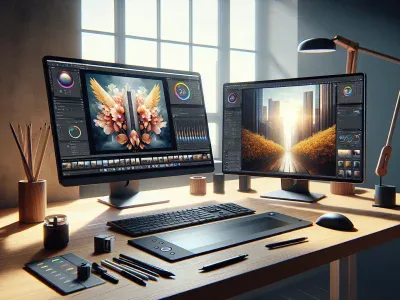
Picture this: you’re navigating a digital world where every command is either a click away or typed out with precision. why some people prefer colorful icons and windows while others thrive in text-filled terminals? The way we interact with computers boils down to two distinct approaches—Graphical User Interfaces (GUI) and Command Line Interfaces (CLI).
Each method offers its own unique charm. GUI captivates with its intuitive design, making tasks feel effortless, almost like flipping through the pages of a picture book. On the other hand, CLI speaks to those who crave control and speed, where typing commands feels like unlocking hidden powers. These tools shape how you experience technology daily, but understanding their differences can transform how effectively you work.
Overview Of GUI And CLI
Graphical User Interfaces (GUI) and Command Line Interfaces (CLI) represent two distinct methods for interacting with computer systems. Each offers unique features, advantages, and use cases.
What Is GUI?
A Graphical User Interface (GUI) uses visual elements like windows, icons, menus, and pointers to enable interaction. You rely on graphical representations rather than text commands to perform tasks. Popular examples include Microsoft Windows, macOS, and Android.
GUIs prioritize user-friendliness by providing intuitive designs accessible to those without technical expertise. Drag-and-drop functionality simplifies tasks like moving files or formatting documents. GUIs are essential in design software such as Adobe Photoshop or Figma because they allow precise control through visual tools.
But, their reliance on system resources can be a drawback when compared to CLIs. Applications with complex graphics demand more memory and processing power, which might affect performance on low-end devices.
What Is CLI?
A Command Line Interface (CLI) involves typing text-based commands into a terminal or console to interact with the system. It provides direct access to functions via command syntax rather than visual navigation. Examples include Linux terminals, PowerShell in Windows, and macOS Terminal.
CLIs excel at automation by allowing you to execute scripts for repetitive tasks quickly. Developers often use them for compiling code or managing servers because of their speed and precision. For instance, using “git clone” downloads repositories efficiently in software development workflows.
Though powerful for advanced users, CLIs have a steeper learning curve due to their dependence on memorizing commands and understanding syntax rules. Errors like mistyped commands can disrupt processes if you’re not familiar with troubleshooting techniques.
Key Differences Between GUI And CLI
Graphical User Interfaces (GUIs) and Command Line Interfaces (CLIs) differ significantly in design, usability, speed, learning requirements, and adaptability. These distinctions influence how you interact with technology across various scenarios.
User Interface Design
GUI relies on graphical elements like buttons, icons, and menus to navigate. For example, using a mouse to click on folders simplifies file access. In contrast, CLI operates through text commands typed into a terminal window. Typing cd Documents lets you open the “Documents” directory without visual aids.
Ease Of Use
GUIs prioritize accessibility by presenting options visually. Beginners often find GUIs easier because they require little technical knowledge—think of opening an application by double-clicking its icon. CLIs demand familiarity with specific commands; for instance, running sudo apt update updates packages but assumes basic syntax understanding.
Performance And Speed
CLI generally outperforms GUI when handling repetitive or complex tasks due to lower system resource usage. Automating processes like batch renaming files is faster via CLI scripts than manual GUI actions. But, GUIs shine in tasks requiring real-time visuals like photo editing or UI/UX design.
Learning Curve
Learning GUIs is intuitive since their layouts guide interactions visually; think dragging-and-dropping files between folders. Conversely, mastering CLI involves memorizing commands and syntax rules—barriers that can dissuade non-technical users from exploring it deeply.
Customization And Flexibility
CLI offers extensive customization through scripting languages like Python or Bash for automating workflows efficiently. For instance writing a shell script saves time on recurring operations but requires advanced skills. While GUI customization exists (e.g., changing themes), it’s limited compared to what CLI enables at the system level.
Advantages And Disadvantages Of GUI
Graphical User Interfaces (GUIs) offer interactive, visual-based tools that simplify user interaction with computers. Their advantages and disadvantages impact usability, efficiency, and overall experience.
Benefits Of GUI
Ease of Use
GUIs present information visually using icons, buttons, and menus. This design reduces the need for memorizing commands and makes navigation more intuitive for beginners. For example, dragging-and-dropping a file into a folder is simpler than typing a command to move it.
Visual Feedback
Actions in GUIs provide immediate responses through animations or updates on-screen. If you delete a file, it’s instantly removed from view or moved to the recycle bin, confirming your action without ambiguity.
Accessibility Features
Many GUIs include options like screen readers and adjustable font sizes that enhance accessibility for users with disabilities. Operating systems such as Windows integrate assistive technologies directly into their GUI frameworks.
Multitasking Abilities
GUIs allow multiple applications to run simultaneously via windows management systems like taskbars or tabs. Switching between editing documents and browsing websites becomes seamless with this functionality.
WYSIWYG Editing
“What You See Is What You Get” (WYSIWYG) editors enable precise adjustments in design tools like Photoshop or word processors by reflecting real-time changes visually instead of relying on code previews.
Drawbacks Of GUI
Resource Consumption
GUIs demand significant system resources due to graphical elements like high-resolution images and animations. Older hardware may struggle to maintain performance when running modern GUIs.
Limited Precision In Some Tasks
For advanced processes requiring fine control—such as server maintenance—GUIs can be slower than text-based alternatives because of their reliance on pre-built functions over direct input commands.
Steeper Development Costs
Creating robust GUIs involves designing complex graphics interfaces alongside ensuring usability testing across devices; these factors increase development time compared to CLIs which rely primarily on scripting syntax alone.
Learning Overhead For Advanced Features
Advantages And Disadvantages Of CLI
Command Line Interfaces (CLI) provide a text-based method to interact with computers, offering unique advantages and challenges compared to GUIs.
Benefits Of CLI
Efficiency for Advanced Users
CLIs allow you to execute tasks quickly by typing commands directly, bypassing the need for navigating through graphical menus. For example, developers can automate processes like file system management using shell scripts.
Low Resource Consumption
A CLI consumes fewer system resources since it doesn’t rely on graphics rendering or animations. This makes it ideal for low-power devices or remote system administration over limited bandwidth connections.
Precision and Control
You gain granular control over software functions with precise command inputs. For instance, database administrators often prefer CLIs like MySQL Shell for executing complex queries efficiently.
Automation Capabilities
Command lines support scripting languages, enabling automation of repetitive tasks such as backups or data migrations without manual intervention.
Cross-platform Compatibility
Many CLI tools work across different operating systems without modification, ensuring consistency in workflows regardless of your preferred OS.
Drawbacks Of CLI
Steep Learning Curve
Mastering a CLI requires memorizing numerous commands and their syntax, which can be overwhelming for beginners unfamiliar with programming concepts.
Error Susceptibility
Mistyped commands may lead to unintended results or even critical errors in sensitive operations like server configurations.
Lack of Visual Feedback
Unlike GUIs that offer immediate responses through icons or progress bars, CLIs typically lack visual cues, making troubleshooting more challenging when dealing with complex issues.
Limited Accessibility
Text-based interfaces aren’t user-friendly for individuals relying on assistive technologies unless additional tools are integrated into the environment.
Time-Consuming Debugging
Identifying problems in long command scripts takes significant time due to the absence of intuitive debugging features inherent in GUI environments like IDEs.
When To Use GUI Vs CLI
Choose a GUI if ease of use and visual interaction are priorities. GUIs excel in tasks requiring real-time visuals, like photo editing or video production. For example, design software such as Adobe Photoshop provides intuitive tools for intricate image manipulation. Beginners benefit from the drag-and-drop functionality and clear navigation offered by GUIs.
Opt for CLI when efficiency and automation matter most. CLIs handle repetitive tasks faster through scripting or batch commands. Developers often prefer text-based interfaces for programming, server management, and debugging due to their precision and low resource demand. For instance, writing shell scripts can streamline system backups or automate file operations with minimal manual input.
Consider using a GUI for collaborative projects involving non-technical users, since its intuitive design facilitates teamwork without extensive training requirements. Conversely, technical professionals might favor CLIs in environments where speed and control outweigh accessibility concerns.
In hybrid workflows, combining both can be advantageous. A developer may use CLI to deploy code efficiently while relying on a GUI for monitoring application performance visually. Recognizing your task’s demands helps determine which interface aligns with your goals effectively.
Conclusion
Understanding the differences between GUI and CLI empowers you to choose the right tool for your needs. Each interface has its strengths, whether you value visual simplicity or precise control. By aligning your choice with the task at hand, you can work more efficiently and effectively.
Both interfaces play a crucial role in technology, and combining them can unlock even greater potential. Embrace their unique benefits to optimize how you interact with computers in different scenarios.
To provide the best experiences, we use technologies like cookies to store and/or access device information. Consenting to these technologies will allow us to process data such as browsing behaviour or unique IDs on this site. Not consenting or withdrawing consent, may adversely affect certain features and functions.
Functional
Always active
The technical storage or access is strictly necessary for the legitimate purpose of enabling the use of a specific service explicitly requested by the subscriber or user, or for the sole purpose of carrying out the transmission of a communication over an electronic communications network.
Preferences
The technical storage or access is necessary for the legitimate purpose of storing preferences that are not requested by the subscriber or user.
Statistics
The technical storage or access that is used exclusively for statistical purposes.The technical storage or access that is used exclusively for anonymous statistical purposes. Without a subpoena, voluntary compliance on the part of your Internet Service Provider, or additional records from a third party, information stored or retrieved for this purpose alone cannot usually be used to identify you.
Marketing
The technical storage or access is required to create user profiles to send advertising, or to track the user on a website or across several websites for similar marketing purposes.