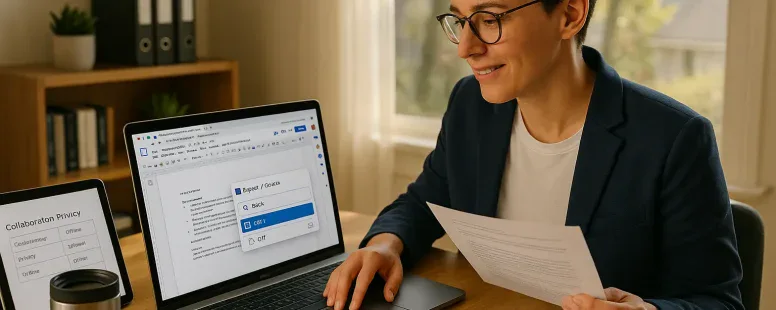
You can keep all the features you rely on from Microsoft Word while switching to tools that cost less, work better online, or guard your data more closely. Which option is best depends on what you do daily: collaborate in real time, edit long-form manuscripts, or run an office with shared templates and macros. This guide walks you through clear choices, practical trade-offs, and migration steps so you don’t lose formatting or workflow momentum. Expect concrete comparisons, real-world tips, and the exact places where each alternative shines, sometimes in ways Microsoft Word does not.
Why Consider An Alternative To Microsoft Word
Fact: Many users leave Microsoft Word for cost, collaboration, privacy, or compatibility reasons. Microsoft 365 subscription fees add up for individuals and teams. You might also need a tool that handles live co-editing without expensive add-ons, or one that respects local data storage and privacy laws.
Cost is often the first motivator. For students and small teams, free options like Google Docs or LibreOffice reduce monthly spend. For remote teams, the value is in collaboration: Google Docs, OnlyOffice, and Zoho Writer let multiple people edit simultaneously with minimal friction. For privacy-conscious users, offline-first apps such as LibreOffice and Apple Pages keep documents on your device so third parties can’t scan them.
A less obvious reason is workflow fit. Word’s strengths are deep formatting and macros. But you may not use those features: instead you need clean version history, fast load times on low-powered machines, or better mobile editing. Those are valid reasons to pick a different word processor.
Question to ask: what task is non‑negotiable for you? Start with that and let it guide your choice.
Key Criteria To Use When Choosing A Word Processor
Fact: Choose a word processor by matching it to your priorities, compatibility, collaboration, offline access, security, and price.
Compatibility: Ensure the app opens and saves DOCX reliably. Also look for support for ODT and PDF exports. Named entities to check: Microsoft Word (DOCX), LibreOffice (ODT), Google Docs (DOCX export).
Collaboration: Confirm real-time editing, commenting, and granular access controls. Test latency and merge behavior with large documents.
Offline access and performance: Verify how the app behaves without internet and how it performs on older hardware or mobile devices.
Privacy and security: Check encryption at rest, data ownership policies, and where servers are located (Google, Zoho, OnlyOffice, Nextcloud integrations).
Advanced features: Look for templates, styles, macros, citation tools, and mail merge if you need them.
Pricing and licensing: Compare one-time purchases (Apple Pages, LibreOffice free) vs subscriptions (Microsoft 365, WPS premium).
Start every evaluation by downloading a sample file you commonly use and test core tasks: open, edit, save, export. That will reveal subtle incompatibilities early.
Top Alternatives — Features, Pros, And Cons
Google Docs
Fact: Google Docs excels at real-time collaboration and accessibility. It runs in the browser and autosaves to Google Drive. Pros: seamless co-editing, rich add-ons, strong commenting and suggestions. Cons: offline mode is limited, advanced layout and long-document formatting can be clumsy, and privacy concerns arise from cloud storage.
LibreOffice Writer
Fact: LibreOffice Writer is a powerful open-source desktop suite that reads and writes many formats. Pros: free, no lock-in, strong styles and layout control, supports ODT and DOCX. Cons: UI feels dated, real-time collaboration requires extra setup (Collabora or Nextcloud), and macros differ from Word’s VBA.
WPS Office Writer
Fact: WPS Office offers a familiar Word-like interface with a low-cost or free tier. Pros: good DOCX compatibility, PDF tools, mobile apps. Cons: ads in free version, some privacy trade-offs, advanced features behind paywall.
OnlyOffice
Fact: OnlyOffice focuses on document fidelity and team collaboration inside self-hosted or cloud environments. Pros: excellent DOCX fidelity, integrated with Nextcloud, granular permissions. Cons: cloud hosting costs, learning curve for self-hosting.
Apple Pages
Fact: Apple Pages works best for Mac and iOS users and is free on Apple hardware. Pros: clean design, strong page layout tools, simple collaboration via iCloud. Cons: limited Windows support (web-only), export quirks with complex DOCX files.
Zoho Writer
Fact: Zoho Writer blends cloud collaboration with strong privacy controls and office suite integrations. Pros: rich collaboration features, e-signatures, good DOCX import. Cons: less universal adoption than Google, premium features require subscription.
Each option has trade-offs. If you need near-perfect compatibility for legal or publishing use, test with your actual documents first.
Side‑By‑Side Comparison Of The Leading Options
Compatibility And File Format Support
Fact: DOCX is the lingua franca for document exchange. Google Docs, OnlyOffice, WPS, and LibreOffice all support DOCX, but fidelity varies. OnlyOffice and Microsoft 365 usually produce the closest match. LibreOffice handles ODT best. Apple Pages can export DOCX but may alter complex layouts.
Collaboration And Real‑Time Editing Capabilities
Fact: Google Docs leads in low-friction collaboration. Zoho Writer and OnlyOffice offer strong alternatives with finer access controls. LibreOffice requires Collabora or Nextcloud for real-time edits.
Offline Access, Platform Support, And Performance
Fact: Offline-first tools like LibreOffice and Apple Pages perform best without internet. Google Docs provides offline via the Chrome extension or mobile apps, but performance on large files may lag. WPS runs well on low-end Windows machines.
Privacy, Security, And Data Ownership
Fact: Data ownership differs across vendors. LibreOffice keeps files local. OnlyOffice and Zoho allow self-hosting for greater control. Google and Microsoft store data on their cloud infrastructure and follow their respective privacy policies: you should review those policies for compliance.
Pricing And Licensing Overview
Fact: Price models vary: LibreOffice and Apple Pages are free, Google Docs is free with storage limits, OnlyOffice and Zoho offer freemium tiers and paid business plans, Microsoft Word typically requires Microsoft 365 subscription. For teams, factor in admin controls and enterprise features when comparing costs.
How To Migrate From Microsoft Word Without Losing Formatting
Preparing Documents Before Conversion
Fact: Clean your source documents before converting to improve fidelity. Remove unused styles, flatten very complex tables, and standardize fonts. Embed fonts when possible. Save a DOCX master copy before you begin.
Best File Formats To Use (DOCX, ODT, PDF)
Fact: Use DOCX for widest compatibility and ODT for open-format fidelity. Export final, print-ready copies as PDF. DOCX preserves track changes and comments more reliably across modern editors. ODT is best when you want vendor-neutral storage.
Handling Styles, Fonts, Tables, And Track Changes
Fact: Styles win over manual formatting. Convert direct formatting into named styles in Word before migrating. Replace obscure fonts with common substitutes (Arial, Times New Roman, Calibri) to avoid layout shifts. For tracked changes, accept or resolve those you can, then export a clean version and keep the version with changes as a reference.
Recommendations For Batch Conversion And Backups
Fact: Automate bulk conversions with tools. Use LibreOffice’s command-line –headless mode or third-party batch converters to convert many files to ODT or PDF. Always keep backups: store originals in a separate folder or cloud bucket, and run spot checks on a sample of converted files to confirm fidelity.
Best Alternative For Different Use Cases
Students And Casual Users
Fact: Google Docs is often the best fit for students due to free access, autosave, and easy sharing. It integrates with Google Classroom and widely used LMSs. For offline study, Apple Pages or LibreOffice work well.
Writers, Journalists, And Editors
Fact: Writers often prefer tools that handle long documents and versioning. LibreOffice Writer and OnlyOffice provide strong style and formatting controls. Google Docs is preferred for collaborative editing and rapid editorial feedback.
Small Business And Office Teams
Fact: OnlyOffice and Zoho Writer balance collaboration with admin features. They integrate invoicing, CRM, and document workflows. WPS Office fits budget-conscious teams that need strong DOCX compatibility.
Privacy‑Conscious And Offline Users
Fact: LibreOffice and self-hosted OnlyOffice offer the best control over data. If you must keep data on-premises for compliance, OnlyOffice integrated with Nextcloud or LibreOffice on local drives are solid choices.
Practical Tips For A Smooth Transition
Customizing Templates And Shortcuts To Match Workflow
Fact: Recreate your most-used templates and keyboard shortcuts early. Import Word templates where possible and adjust styles to match. This reduces friction and keeps your documents consistent.
Training Team Members And Setting Up Collaboration Workflows
Fact: Teach a small pilot group first. Run short workshops that cover editing, commenting, and version recovery. Document your new collaboration rules: who reviews, who publishes, and how to name drafts.
Testing Critical Documents And Establishing A Rollback Plan
Fact: Test your critical files before fully switching. Convert legal contracts, invoices, and formatted reports first and review them line-by-line. Keep a rollback plan: retain original DOCX files and keep a snapshot of the old system for at least 30 days in case you need to restore.
Practical next step: pick one alternative, convert three representative documents, and run them through the team. That simple experiment will answer most questions and reveal hidden problems quickly. If you want, start with Google Docs for collaboration tests and LibreOffice for heavy formatting checks, you’ll see which use case matters most to your workflow.
Note: some margin tweaks may be required after conversion, and you should expect small visual differences. You’ve got this, switch deliberately and test thoroughly, and your documents will survive the move with their formatting largely intact.
To provide the best experiences, we use technologies like cookies to store and/or access device information. Consenting to these technologies will allow us to process data such as browsing behaviour or unique IDs on this site. Not consenting or withdrawing consent, may adversely affect certain features and functions.
Functional
Always active
The technical storage or access is strictly necessary for the legitimate purpose of enabling the use of a specific service explicitly requested by the subscriber or user, or for the sole purpose of carrying out the transmission of a communication over an electronic communications network.
Preferences
The technical storage or access is necessary for the legitimate purpose of storing preferences that are not requested by the subscriber or user.
Statistics
The technical storage or access that is used exclusively for statistical purposes.The technical storage or access that is used exclusively for anonymous statistical purposes. Without a subpoena, voluntary compliance on the part of your Internet Service Provider, or additional records from a third party, information stored or retrieved for this purpose alone cannot usually be used to identify you.
Marketing
The technical storage or access is required to create user profiles to send advertising, or to track the user on a website or across several websites for similar marketing purposes.